
The Getting started series
- Knowledge
- Personality
- Instructions
- Topics
- Testing in the Playground
- Go live — you are here
Where to find it
Open your AI Agent and go to Go live in the left menu. The page sums up the goal nicely: it's where you decide where your agent works, how careful it should be, and when it hands a conversation to your team.
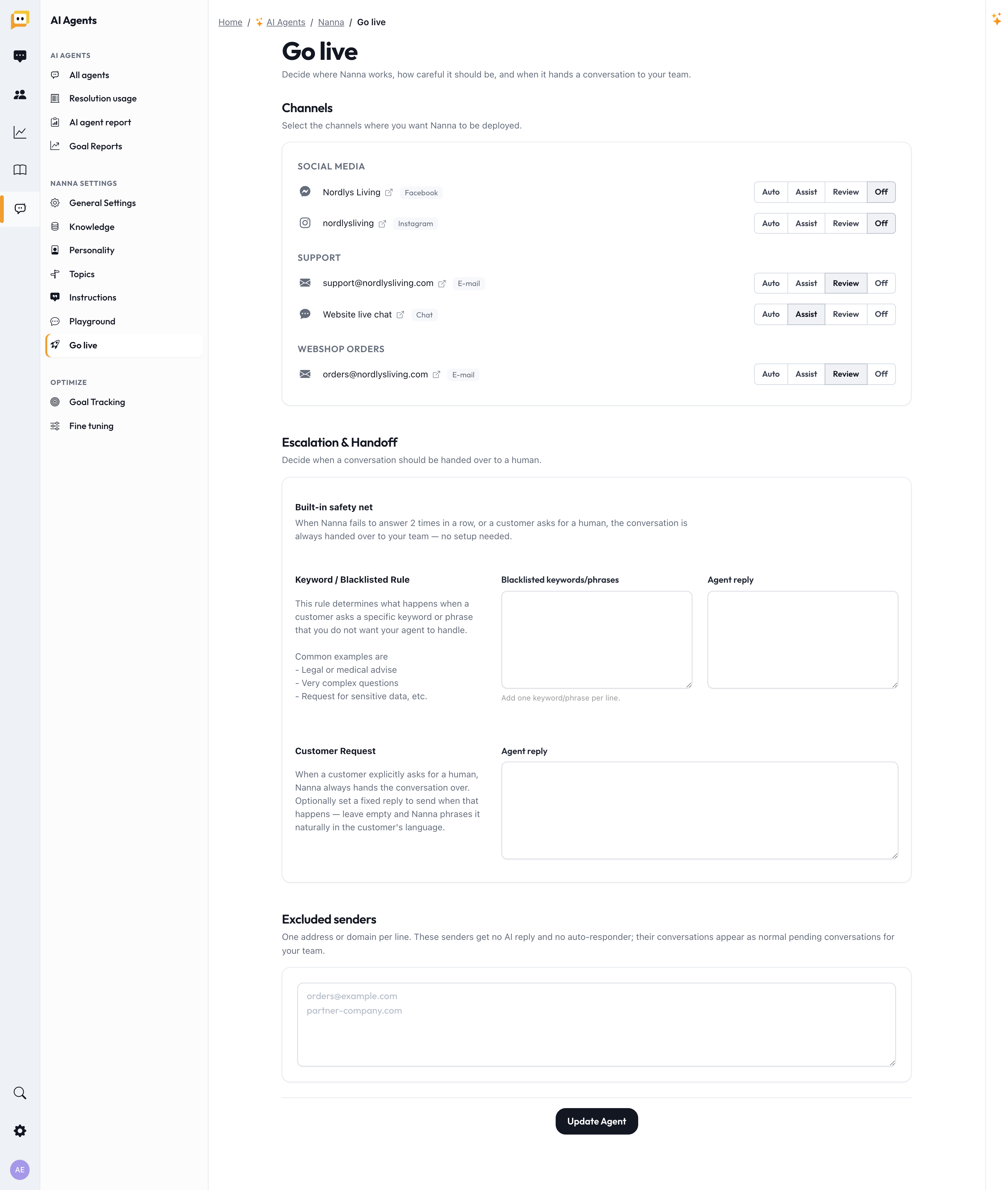
Choose a mode per channel
You control the agent separately for each channel (live chat, email, Messenger, Instagram, WhatsApp). Pick one of four modes — think of it as a dial you turn up as your confidence grows:
| Mode | What happens | When to use it |
|---|---|---|
| 🔴 Off | The agent does nothing on this channel. | Channels you're not ready to automate. |
| 📝 Review | The agent drafts a reply; a human must send it. Nothing goes out automatically. | Your starting point — real traffic, zero risk, no cost. |
| 🤝 Assist | The agent replies on its own, but any real action (like cancelling an order) is only proposed for a human to approve. | Building trust while keeping control of actions. |
| 🚀 Auto | The agent replies and performs allowed actions on its own. | Channels you've tested and trust. |
How this works with Topics: The channel mode sets the ceiling. Your topic settings can be more cautious per subject — and a topic you've promoted to Autopilot can act on its own even on a Review or Assist channel. The two work together.
Our strongly recommended rollout:
- Start every channel in Review. Watch the drafts for a week or two.
- Move to Assist once the replies look consistently good.
- Promote to Auto channel by channel — and promote individual topics to Autopilot as they prove themselves.
Slow and steady builds trust with both your team and your customers.
Set up the safety nets
Below the channel modes, you configure how the agent hands conversations to your team. A good agent knows its limits — this is where you define them.
Built-in safety net
This is on automatically, no setup required. The agent hands over to a human when it fails to help after two attempts or when the customer asks for a person. You can rely on this from day one.
Keyword / blacklist rule
Add words or phrases (one per line) that should always trigger a handover — for example "complaint", "lawyer", "chargeback". You can also set the message the agent sends as it hands over.
Customer request
Optionally set a fixed reply the agent gives when a customer explicitly asks for a human, so the handover always feels warm and consistent.
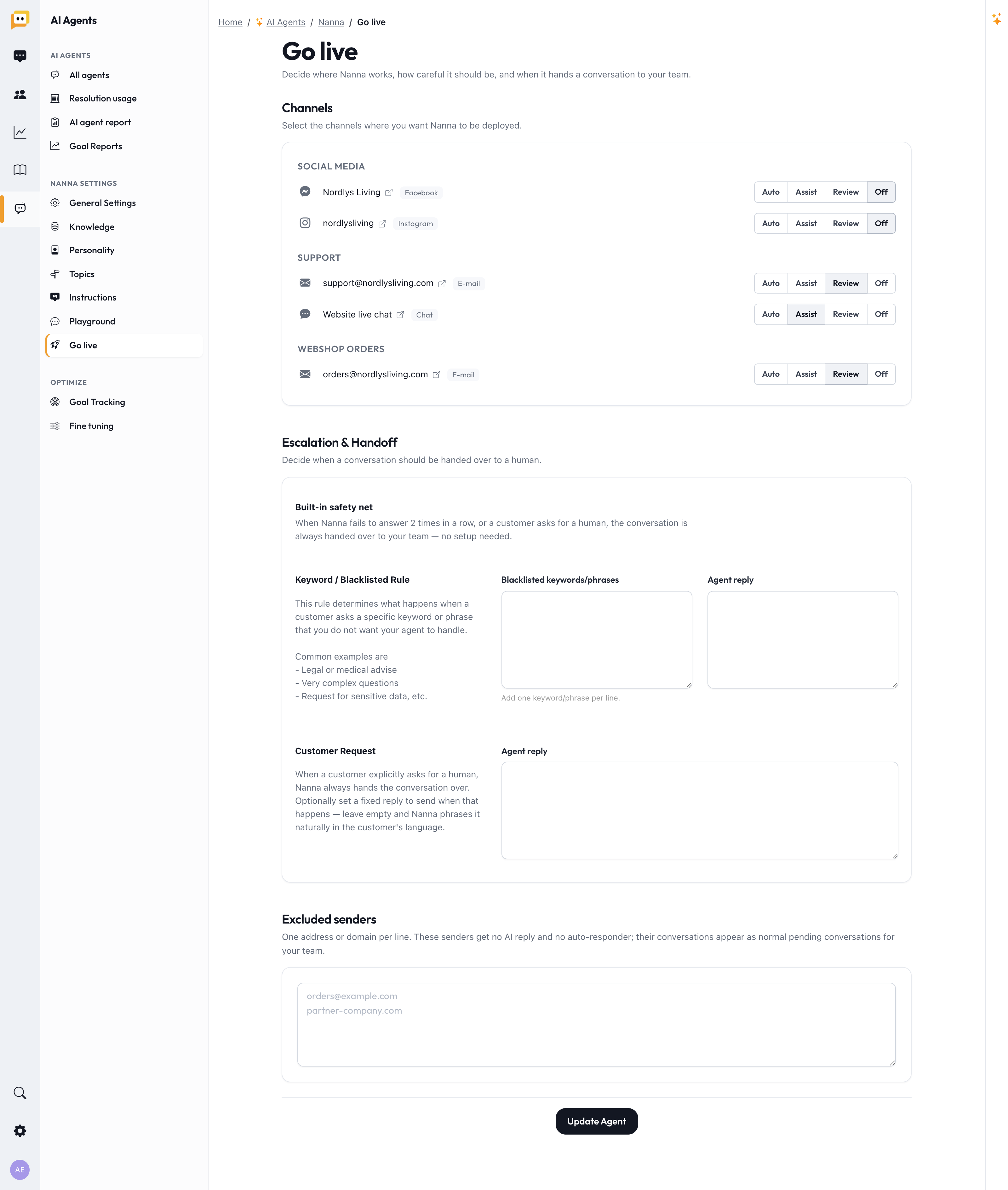
Excluded senders
Some senders should never get an AI reply — internal forwards, partners, automated systems, specific addresses. Add them to Excluded senders (one address or domain per line): these senders get no AI reply and no auto-responder, and their conversations appear as normal pending conversations for your team.
This is a clean way to make sure the agent only ever engages your actual customers.
You're live — now keep an eye on it
Going live isn't the end; it's the start of your agent getting better. Two places to watch:
- Resolution usage — how many conversations your agent is resolving (and your plan usage).
- AI agent report — an overview of how your agent is performing across topics and channels.
And of course, your Topics board is the living scoreboard: watch rates climb, fix what lags, and promote topics to Autopilot as they earn it.
Tips for a smooth launch
- Don't switch everything to Auto at once. Roll out channel by channel, topic by topic.
- Tell your team. Make sure whoever picks up handed-over conversations knows the agent is live and where those conversations land.
- Be transparent with customers. Naming your agent clearly as an AI assistant increases trust and satisfaction.
- Revisit weekly at first. Check the Topics board and the "Not solved" lists; small fixes early pay off fast.
You've completed the setup!
- Set a mode per channel (starting with Review).
- Confirmed the built-in safety net is active.
- Added any blacklist keywords and a customer-request message.
- Added excluded senders where needed.
- Know where to watch Resolution usage and the AI agent report.
🎉 Congratulations — your AI Agent is live! It will keep getting better as you review its work and refine your topics.
Want to go further? Read Fine tuning your AI Agent to learn how to coach it from real conversations.
Questions? Reach us at support@herodesk.com. 🙌