
The Getting started series
- Knowledge
- Personality
- Instructions
- Topics — you are here
- Testing in the Playground
- Go live
The big idea
Not all customer questions are equal. "What are your opening hours?" is safe to automate today. "I want to dispute a charge" probably isn't. Most tools force you to choose one setting for the whole agent — all-or-nothing.
Topics break that trade-off. A topic is simply a category of customer question — like Delivery status, Order cancellation, or Product questions — and each topic gets its own settings:
- Its own instructions (special rules for that kind of question)
- Its own handling mode (handle it, draft it, or send it to a human)
- Its own success rate, measured automatically
Every incoming conversation is automatically sorted into exactly one topic, and that topic decides what happens. The result: your agent can confidently auto-answer the easy 60% of questions while your team keeps the tricky ones — with a clear, measured path to automate more over time.
Where to find it
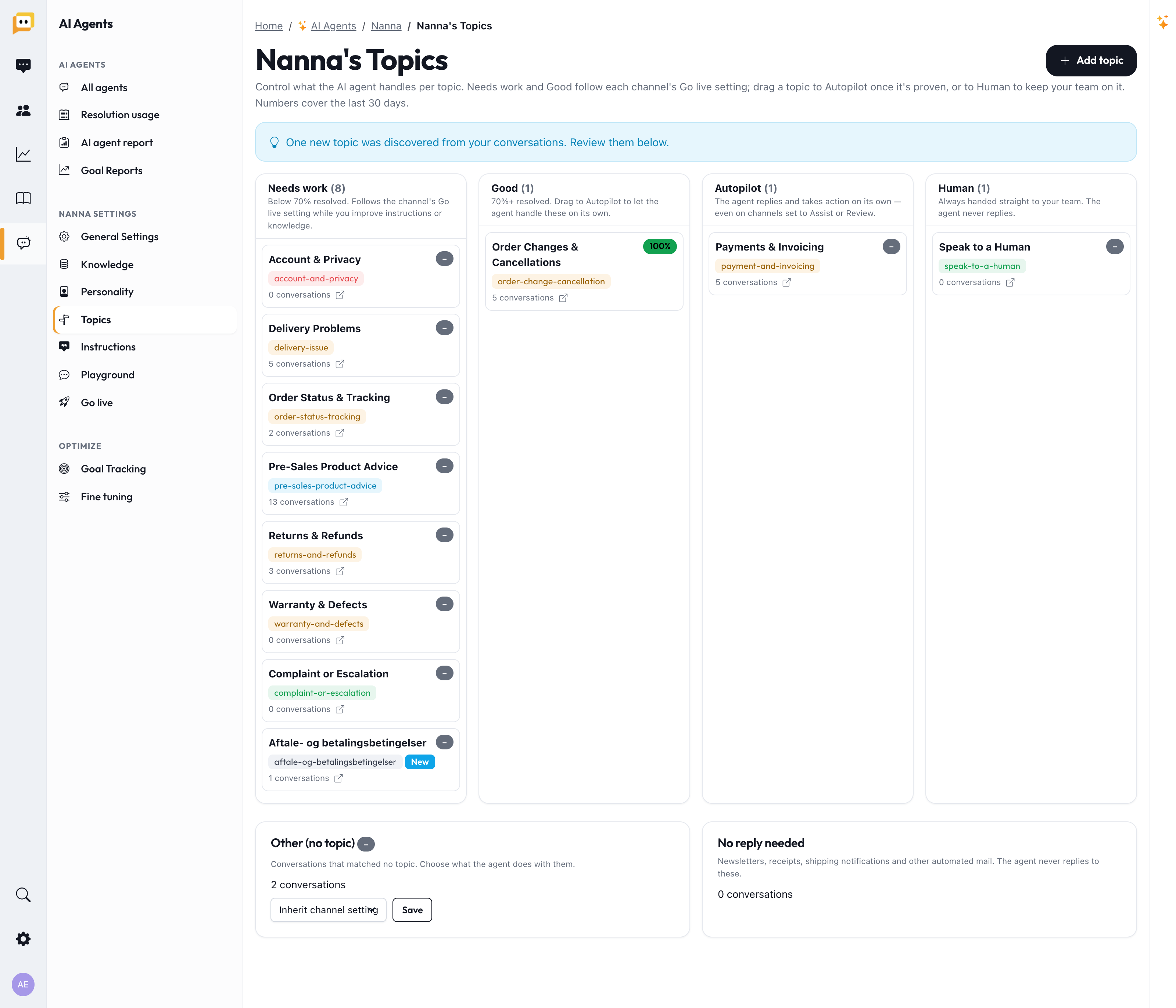
Open your AI Agent and go to Topics in the left menu (titled "your agent's name's Topics").
You don't start from scratch
Two things fill your board for you:
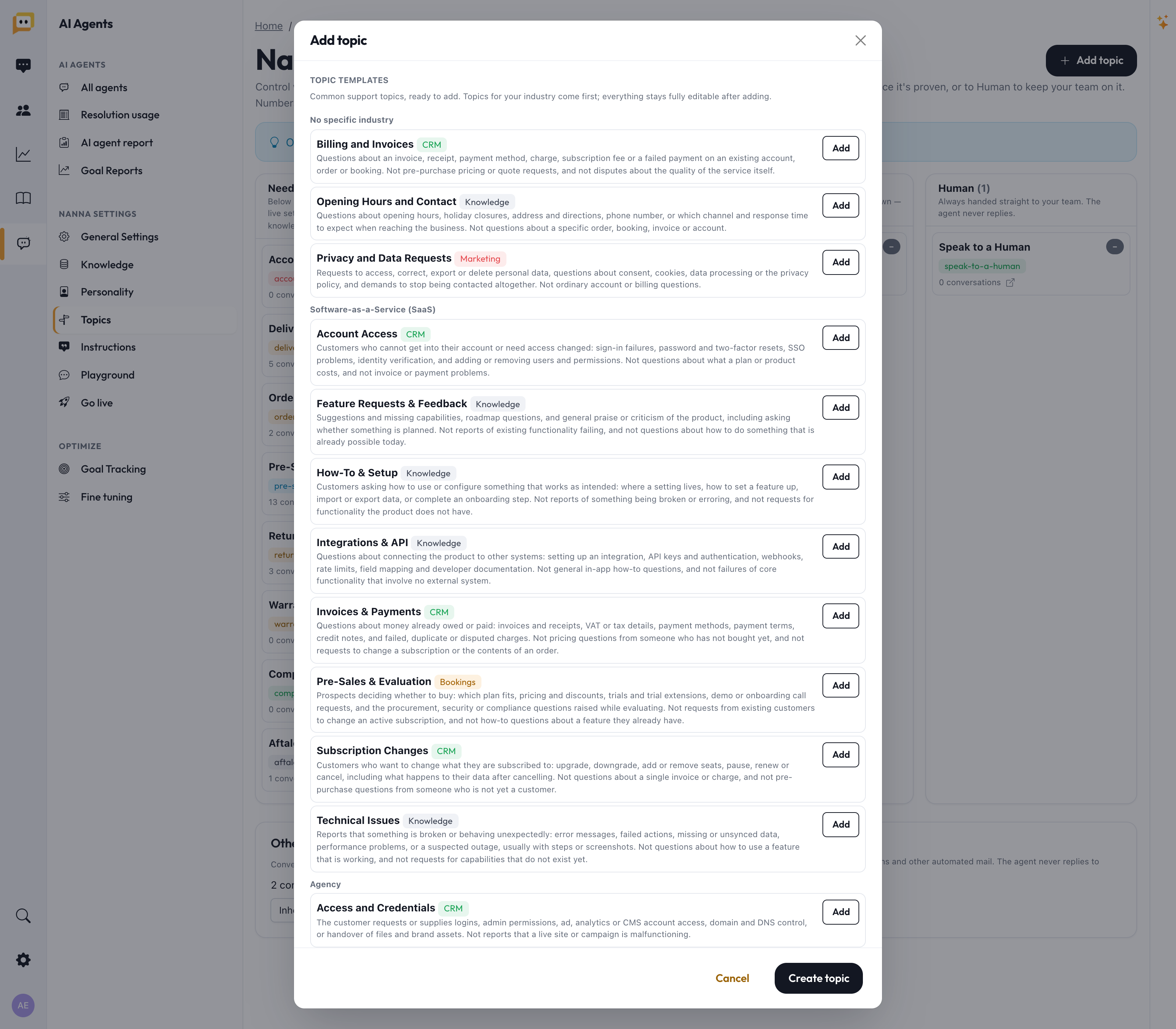
- Industry templates. When you created your agent you picked an industry, and Herodesk pre-loaded common support topics for it. Click Add topic to browse more ready-made templates, with the ones for your industry listed first.
- Automatic discovery. Herodesk reads your real incoming conversations and discovers topics you actually get, adding them to the board with a "New" badge. You don't have to imagine every topic — your customers reveal them.
You can also create your own: give it a Name (e.g. Order cancellation) and a one-line Routing description of what belongs in it.
Reading the board: four columns
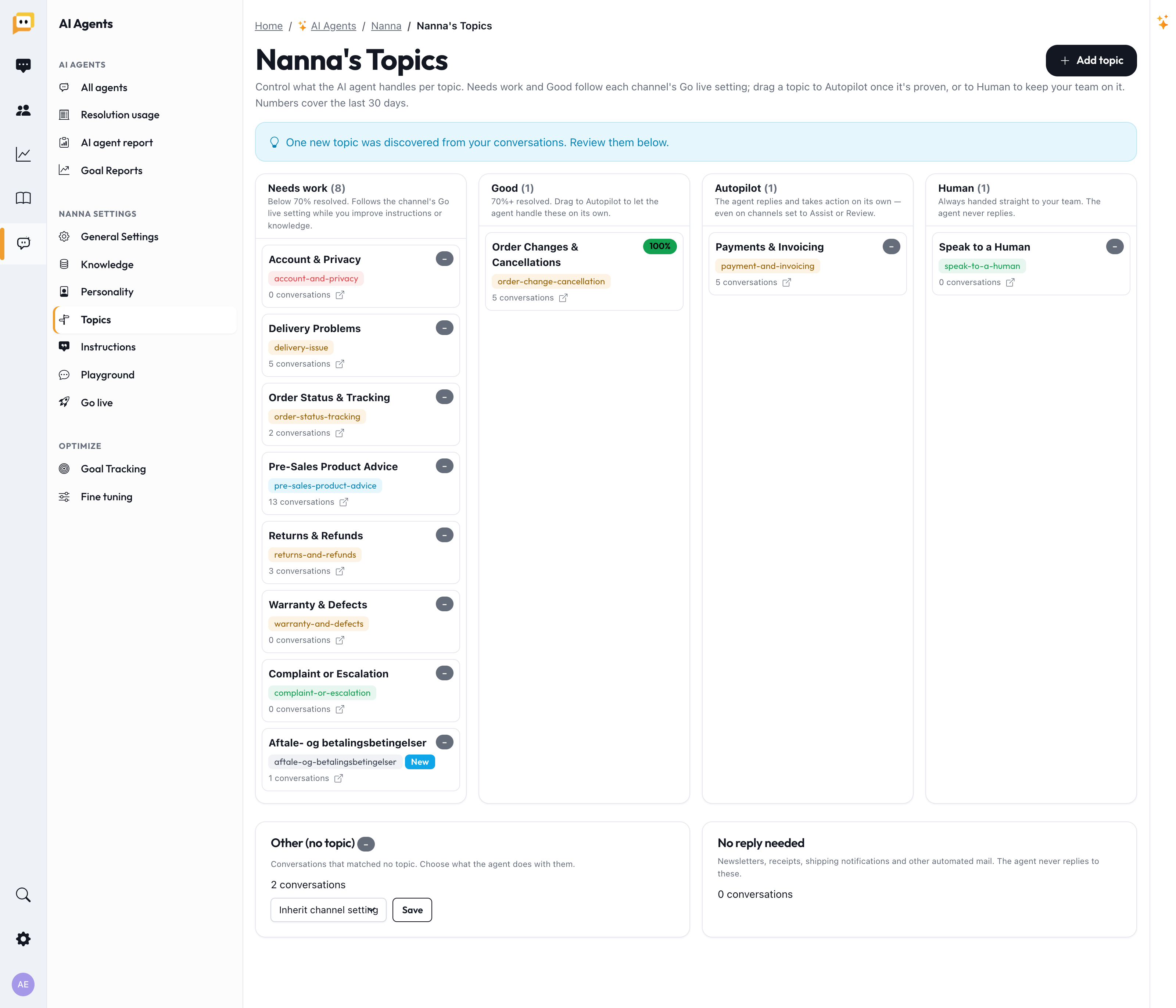
The board has four columns. You move a topic simply by dragging its card from one column to another. The numbers on each card cover the last 30 days.
| Column | What it means | The agent's behaviour here |
|---|---|---|
| 🔧 Needs work | Below 70% resolved. Still being improved. | Follows the channel's Go-live setting while you improve its instructions or knowledge. |
| ✅ Good | 70%+ resolved — proven reliable. | Follows the channel's Go-live setting. Ready to be promoted. |
| 🚀 Autopilot | You've promoted it — you trust it. | The agent replies and takes action on its own — even on channels you've set to Review or Assist. |
| 🙋 Human | Always your team's job. | The agent never replies; it's handed straight to a human. |
Each card shows a coloured resolve-rate pill:
- 🟢 Green — 70% or more resolved
- 🟡 Yellow — 40–69%
- 🔴 Red — below 40%
Needs work and Good are the same pool — a topic lands in one or the other purely based on its resolve rate. You don't set that; the measurement does. Dragging a card to Autopilot or Human is the deliberate choice you make.
Two special tiles
Below the columns are two tiles that catch everything else:
- Other (no topic) — Conversations that didn't match any topic. You choose what the agent does with these via a dropdown: Inherit the channel setting, Assist, Review, or Hand to a human. This is your safety net for questions you haven't set up yet.
- No reply needed — A built-in system topic for newsletters, receipts, shipping notifications, and other automated mail. The agent never replies to these, so they don't clutter your team's queue or distort your numbers. (This one can't be edited.)
Inside a topic
Click any topic card to open its editor. This is where the real power lives.
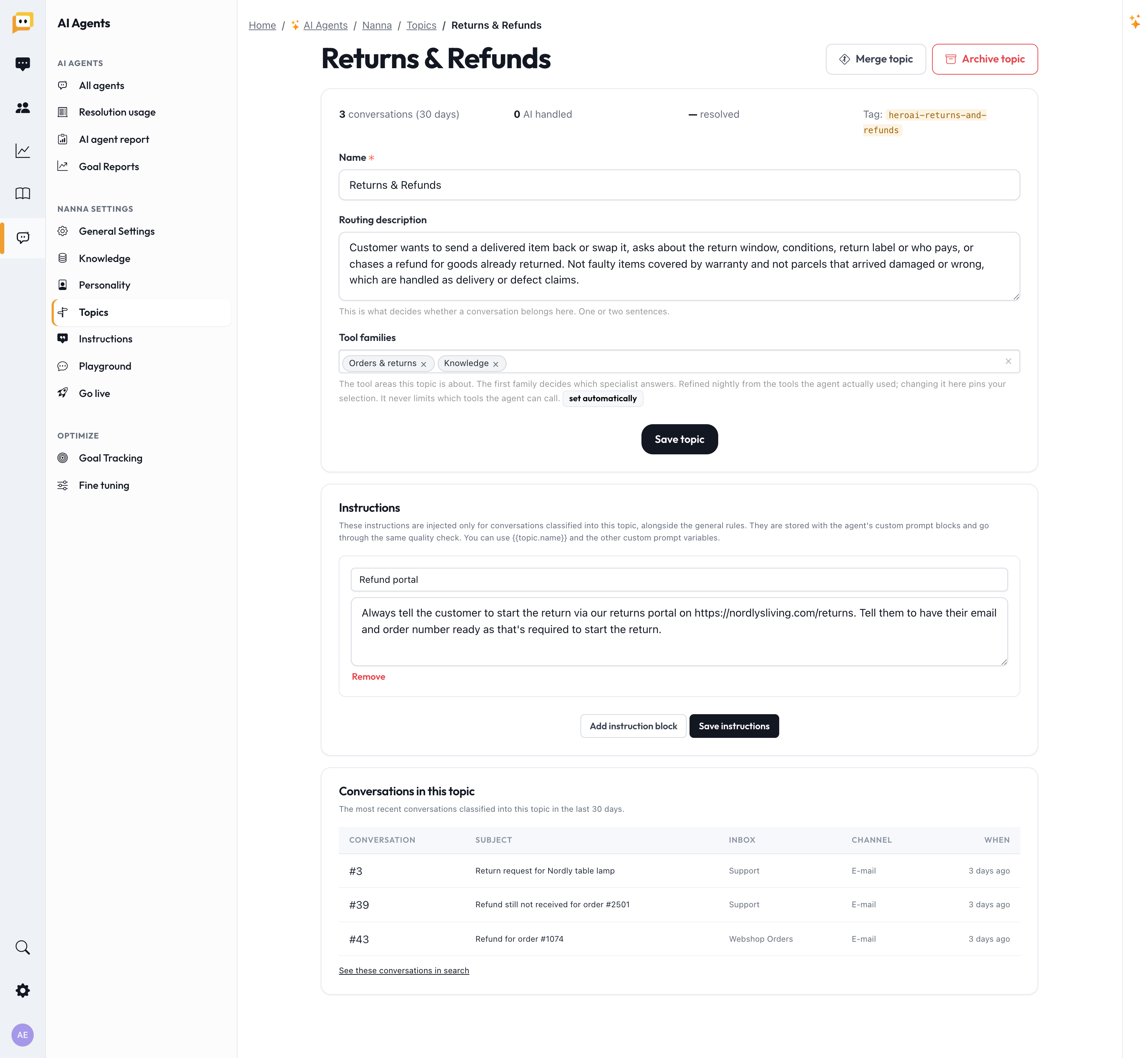
At the top you'll see the topic's stats: conversations in the last 30 days, how many the AI handled, and its resolve rate.
Key fields:
- Name — what you call the topic.
- Description — this is what decides whether a conversation belongs here, so make it clear and specific: one or two sentences.
- Instructions — rules that apply only to conversations in this topic, on top of your global instructions. This is where topic-specific handling goes: "For delivery questions, always give the tracking link and the expected date." You can use
{{topic.name}}and the other variables here too.
There's also an advanced tool families field. You can safely ignore it to start — Herodesk sets and refines it automatically based on the tools the agent actually uses. It never limits what the agent can do; it just helps route to the right expertise.
Helpful sections lower down:
- Conversations in this topic — recent examples, so you can see what's landing here.
- Not solved by the agent — the ones dragging this topic's rate down. Open these to see exactly what went wrong, then fix the instructions or knowledge behind them. This is your single most useful tool for improving a topic.
- Recent handovers — what got passed to your team, and why.
You can also Merge two similar topics (Herodesk even suggests merges with a "merge?" badge) or Archive a topic you no longer want.
The workflow: how topics graduate to Autopilot
Here's the loop that makes topics so effective. You earn automation with evidence instead of guessing:
- Start cautious. New and weak topics follow your channel setting (typically Review, so the agent only drafts replies your team approves).
- Watch the rate build. As drafts get approved and conversations resolve, each topic accumulates a real, measured resolve rate.
- Promote the winners. When a topic hits Good (70%+), drag it to Autopilot — now the agent handles it entirely on its own.
- Fix the laggards. For topics stuck in Needs work, open the "Not solved" list, find the pattern, and improve the instructions or add knowledge. Then watch the rate climb.
- Protect the sensitive stuff. Drag anything you never want automated (complaints, legal, billing disputes) to Human.
Recommendation: For weak or risky topics on email, prefer Review over Human. Review still produces drafts — and it's those drafts that build the resolve rate that lets the topic eventually graduate. Sending straight to a human gives you no data to improve on.
How topics and channel settings work together
You have two dials, and they combine sensibly:
- Channel setting (from step 6, Go live) sets the ceiling — the most the agent may do on that channel.
- Topic mode adjusts below that ceiling for specific subjects…
- …with one exception: a topic on Autopilot is trusted enough to act on its own even on a more cautious channel. A proven topic doesn't get held back.
The only thing that always wins is turning a channel Off — then nothing runs there, no matter the topic.
Tips
- Let discovery do the work first. Run in Review for a week or two and let Herodesk surface the topics you actually get, rather than inventing them.
- Fix, don't just demote. A red topic is a signal, not a failure — the "Not solved" list usually points straight at a missing article or an unclear rule.
- Write sharp descriptions. Vague topic descriptions cause miss-sorting. One or two specific sentences is the sweet spot.
- Graduate gradually. Move a couple of topics to Autopilot, watch them for a few days, then move more.
Before you move on
- Reviewed the topics already on your board (templates + discovered).
- Added any obviously missing topics.
- Dragged sensitive topics (complaints, legal, billing) to Human.
- Chosen what Other (no topic) should do.
- Added topic-specific instructions where a subject needs special handling.
Next up: Getting started (5/6): Testing in the Playground — try your agent safely before a single customer sees it.
Questions? Reach us at support@herodesk.com. 🙌