
The Getting started series
- Knowledge
- Personality
- Instructions
- Topics
- Testing in the Playground — you are here
- Go live
Never let your first customer be the test
You've given your agent knowledge, a voice, rules, and topics. Now find out how it actually performs — privately. The Playground is a sandbox where you chat with your agent exactly as a customer would, but everything stays internal.
Where to find it
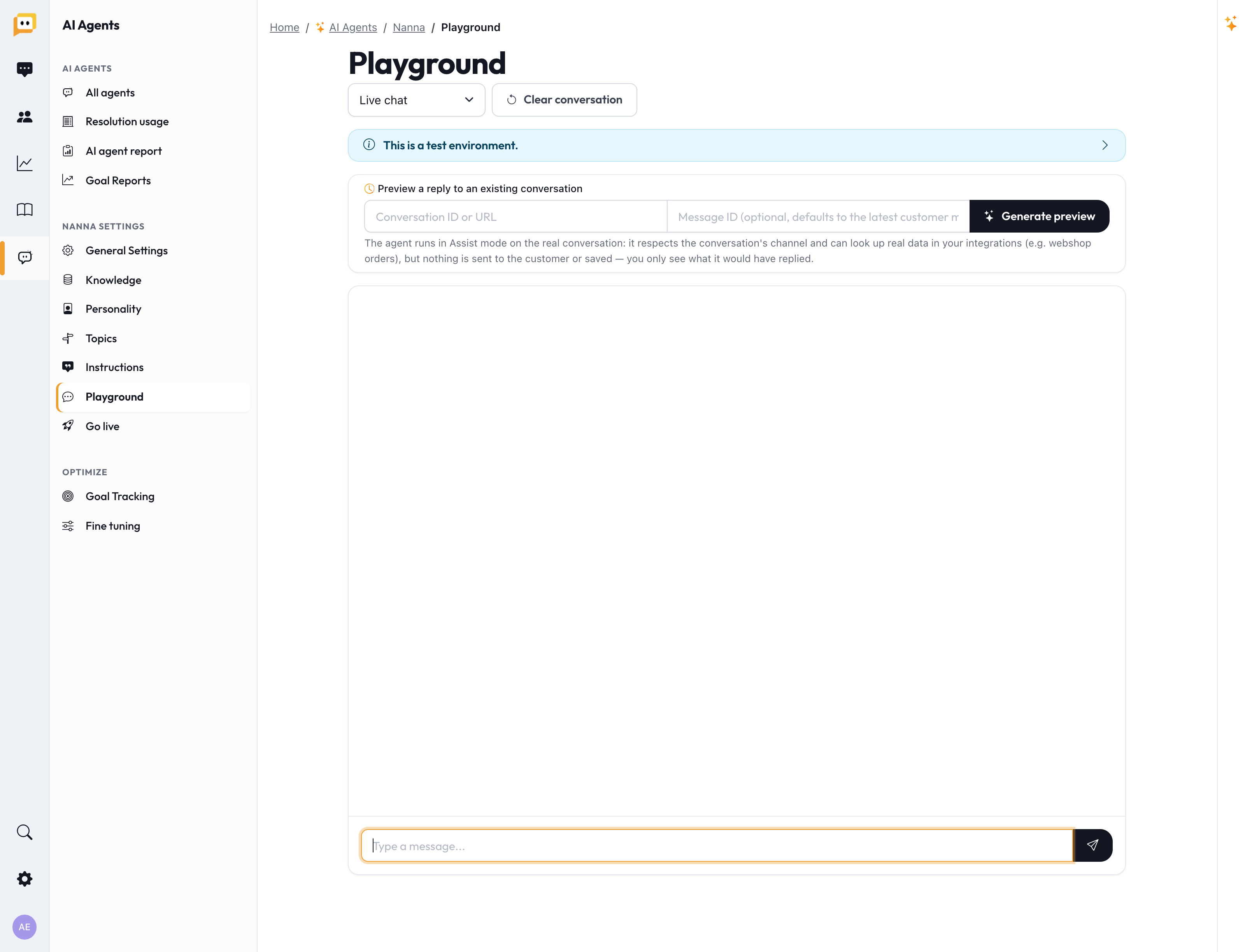
Open your AI Agent and go to Playground in the left menu.
What the Playground is (and isn't)
The banner at the top says it plainly — the Playground is a test environment:
- ✅ You can ask anything and see exactly how the agent replies.
- ✅ You can switch the channel style (Live chat, Email, Messenger, Instagram, WhatsApp) to see how answers change per channel.
- 🚫 Responses are not saved and don't count as resolutions (so you're never billed for testing).
- 🚫 The agent doesn't learn from Playground chats — to teach it, use Fine tuning.
- 🚫 It's cleared when you refresh.
- 🚫 It answers from knowledge only — it can't look up real orders or perform actions here.
That last point matters: if you want to test something that needs real data (like an order lookup), use the second mode below.
Test a real reply: "Preview a reply to an existing conversation"
The Playground has a second, more powerful mode. Paste in a Conversation ID or link (and optionally a specific message) and Herodesk shows you what the agent would reply to a real conversation — using real data — without sending anything.
The agent runs in Assist mode on the real conversation: it respects the conversation's channel and can look up real data in your integrations (e.g. webshop orders), but nothing is sent to the customer or saved — you only see what it would have replied.
This is the best way to test tricky, data-dependent cases: pull up a real order question and see whether the agent finds the order and answers correctly.
You'll also see:
- Datasources — which knowledge the agent used (rated High/Medium/Low relevance), including past conversations and any live lookups. This tells you why it answered the way it did.
- Proposed actions — if the agent wanted to do something (like cancel an order), it's shown here as a proposal that would require human approval before execution. Nothing is actually done.
In this mode you see the real reply, the sources behind it, and any actions it would have proposed — all without sending anything.
The most realistic test of all: Review mode
The Playground is perfect for quick checks, but the most realistic test is to run the agent in Review mode on your real channels (you'll set this in the next step, Go live). In Review mode the agent drafts replies to genuine customer questions, which your team reads and chooses whether to send. Nothing goes out automatically, it costs nothing, and it shows you exactly how the agent performs on your real traffic.
Many teams run in Review for a week or two before switching anything to automatic — it's the safest possible launch.
When an answer isn't right, ask why
A weak answer is useful — it tells you what to fix. Trace it back to the cause:
| What was wrong | The fix |
|---|---|
| The info was missing | Add or update a source on the Knowledge page (step 1). |
| The info was outdated or wrong | Correct it at the source. |
| The tone was off | Adjust the Personality (step 2). |
| It broke a business rule | Add or refine an Instruction (step 3). |
| It shouldn't have answered at all | Move that Topic to Human (step 4). |
The Datasources view is your magnifying glass — it shows exactly what the agent read before answering, so you can see whether the problem is the knowledge or the instructions.
Tips
- Bring your hardest questions. Test edge cases, angry customers, and unusual requests — not just the easy ones.
- Test each channel style. A great chat reply might be too short for email; check both.
- Test with real data. Use the "existing conversation" mode for anything involving orders or lookups.
- Get a teammate to try it. Fresh eyes ask questions you wouldn't think of.
Before you move on
- Chatted with the agent in the Playground and tried hard questions.
- Used "Preview a reply to an existing conversation" to test real data lookups.
- Checked the Datasources to understand why it answered as it did.
- Fixed any weak answers at their source.
Next up: Getting started (6/6): Go live — turn your agent on, safely and gradually.
Questions? Reach us at support@herodesk.com. 🙌