
The Getting started series
- Knowledge
- Personality — you are here
- Instructions
- Topics
- Testing in the Playground
- Go live
Why personality matters
Your AI Agent writes to your customers in your name. A helpful answer in the wrong voice still feels off — too stiff for a playful brand, or too casual for a formal one. The Personality page is where you set how your agent sounds, so every reply feels like it came from your team.
Good news: you don't write any of this from scratch. You pick from simple options and, if you like, add a few words in your own style.
Where to find it
Open your AI Agent and go to Personality in the left menu.
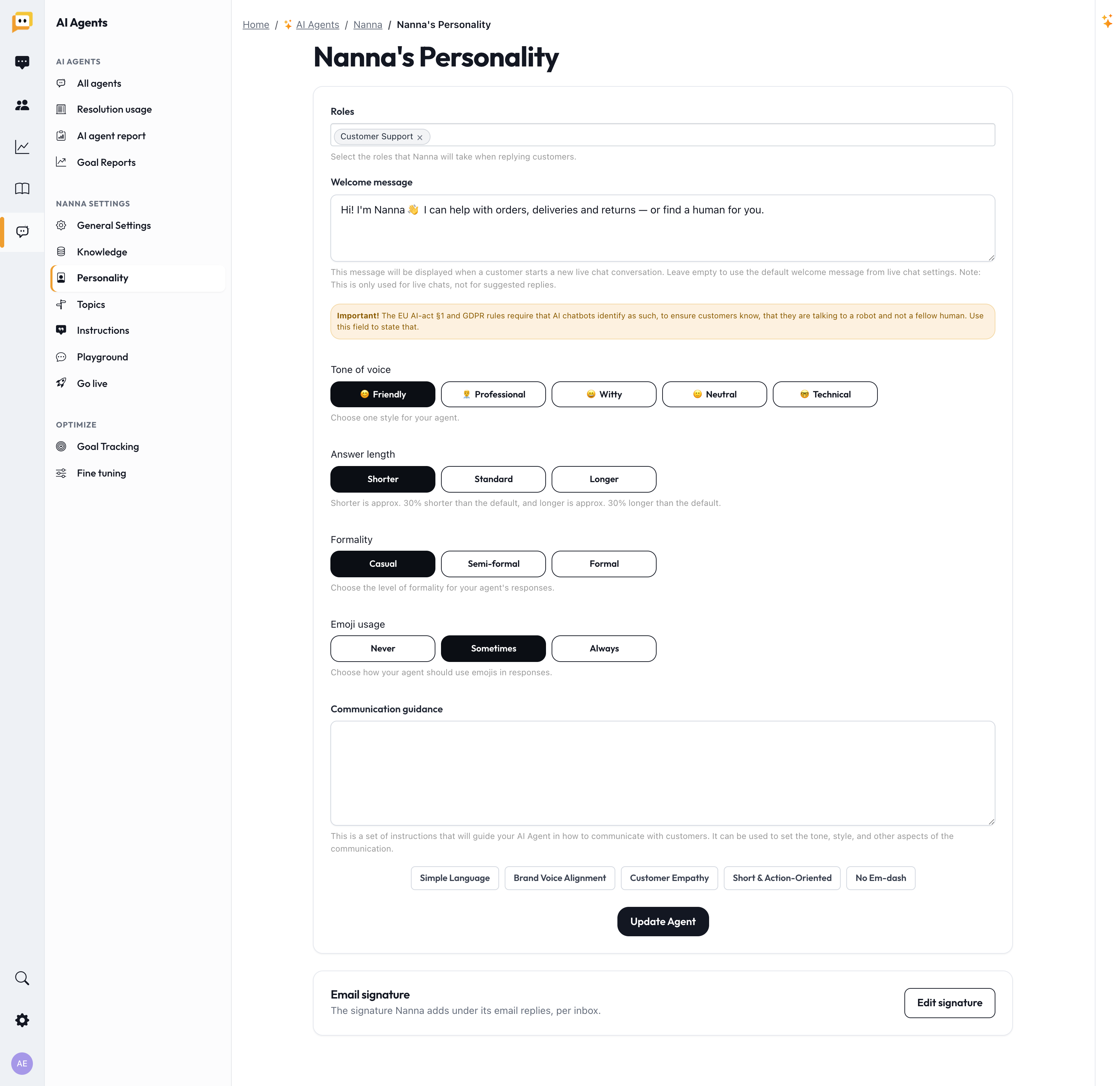
The settings, one by one
Roles
Choose the roles your agent takes on when replying — for example support agent, sales assistant. This shapes how it frames its answers.
Welcome message (live chat only)
The greeting customers see when they open the chat.
Important: In many regions (including the EU), an AI chatbot must clearly identify itself as AI. Use the welcome message to introduce your agent as an assistant — it's good practice and often a legal requirement.
Tone of voice
Pick one style: Friendly, Professional, Witty, Neutral, or Technical. This is the single biggest lever on how your agent comes across.
Answer length
Choose Shorter, Standard, or Longer. (Shorter is about 30% briefer than standard; longer is about 30% more detailed.) Shorter suits chat; longer can suit email.
Formality
Casual, Semi-formal, or Formal — match how your brand normally addresses customers.
Emoji usage
Never, Sometimes, or Always. A quick way to keep the agent on-brand.
Communication guidance
A free-text box where you describe anything the options above don't cover — in your own words. To make this easy, there are one-click templates you can drop in and tweak:
- Simple Language — plain, jargon-free wording
- Brand Voice Alignment — write to match your brand
- Customer Empathy — acknowledge feelings before solving
- Short & Action-Oriented — get to the point with a clear next step
- No Em-dash — a style preference some brands have
Click a template to insert it, then edit it to fit your brand exactly.
Personality vs. Instructions — what's the difference?
This trips people up, so here's the simple version:
- Personality = how it sounds (friendly, brief, no emojis).
- Instructions (the next step) = what business rules it follows (e.g. "always offer a discount code before a refund").
Keep tone here; keep rules there. We'll cover Instructions next.
Don't forget the signature
At the bottom of the page you'll find a link to your email signature. Signatures are managed centrally and set per inbox, so your agent signs off correctly on each channel. You can insert merge fields (agent name, inbox name, organization name) and choose to reuse one signature everywhere.
Tips for a great voice
- Match your existing replies. Read a few of your team's best recent answers and set the tone to match.
- Less is more in the guidance box. A few clear sentences work better than a long essay.
- You can change it anytime. Personality isn't permanent — tune it after you see real replies in the Playground (step 5).
Before you move on
- Set a tone of voice that matches your brand.
- Chose an answer length, formality, and emoji style.
- Added a welcome message that identifies the agent as AI (if using live chat).
- Added any brand-specific notes in Communication guidance.
Next up: Getting started (3/6): Instructions — give your agent the business rules it should follow.
Questions? Reach us at support@herodesk.com. 🙌