
The Getting started series
- Knowledge
- Personality
- Instructions — you are here
- Topics
- Testing in the Playground
- Go live
What are Instructions?
Instructions are your business rules — the "how we do things here" guidance you'd give a new colleague. They're different from Personality:
- Personality is how the agent sounds.
- Instructions are what the agent should do and prioritise.
Examples of instructions:
- "Always offer a discount code before agreeing to a refund."
- "If a customer mentions a damaged item, ask for a photo first."
- "When recommending products, prefer items that are in stock."
- "Never promise a delivery date you can't confirm."
Where to find it
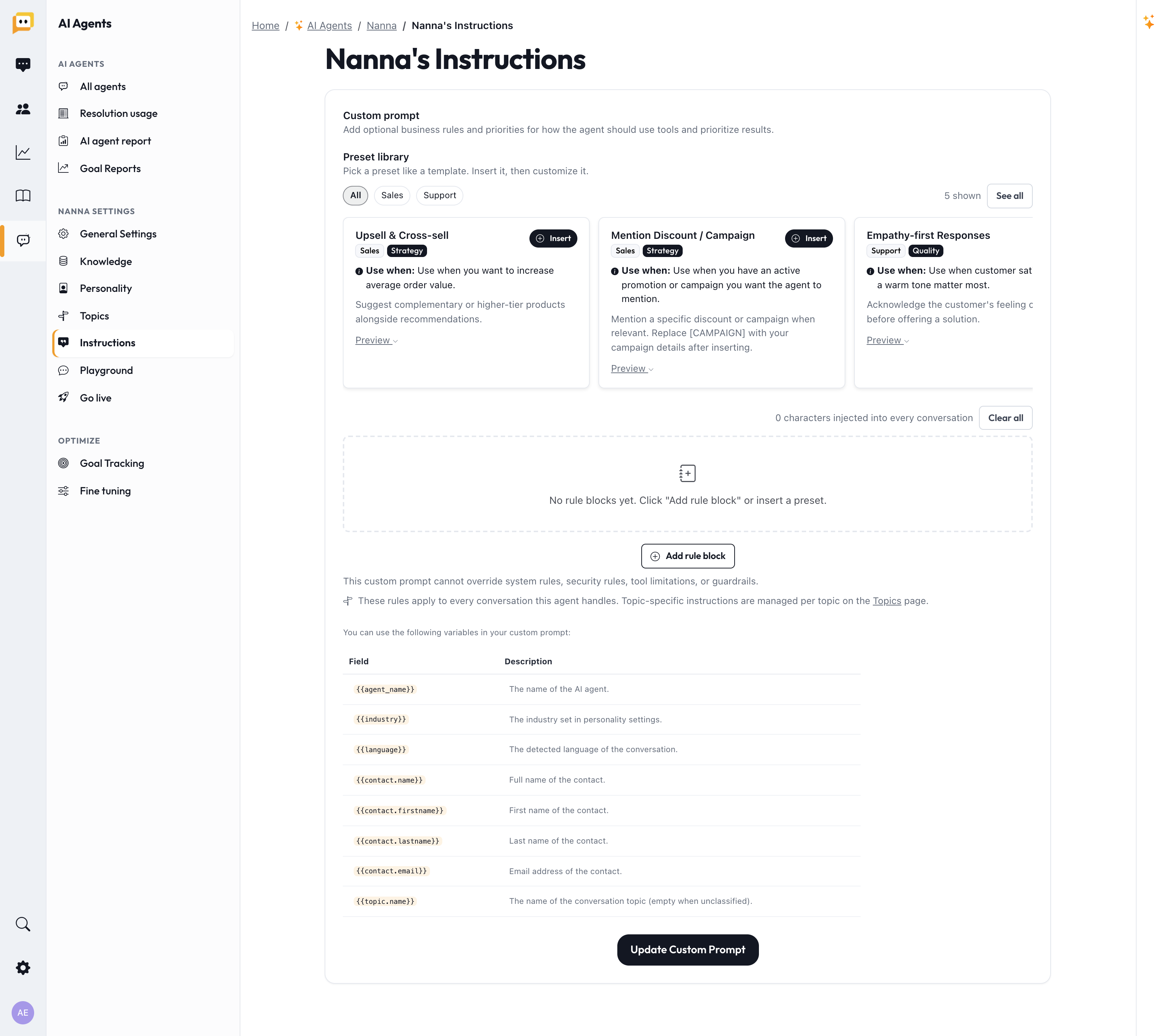
Open your AI Agent and go to Instructions in the left menu (titled "your agent's name's Instructions").
The fastest way: start from a preset
You don't have to write rules from a blank page. The preset library works like a template gallery:
- Browse or filter the presets (each shows a "Use when:" line so you know when it applies).
- Preview one to see what it says.
- Click Insert to add it.
- Edit the wording to fit your business.
Pick a preset like a template. Insert it, then customise it. Presets are the quickest route to a solid setup.
Writing your own rules: use focused blocks
Instructions are organised as rule blocks — each block is one clear rule or theme. Click Add rule block to create one, give it a short title, and write the rule.
Why blocks? Small, focused rules are followed far more reliably than one giant wall of text. If a block gets long or covers several unrelated things, split it up.
You can use variables that get filled in automatically:
{{agent_name}},{{industry}},{{language}}{{contact.name}},{{contact.firstname}},{{contact.lastname}},{{contact.email}}{{topic.name}}(handy for topic-specific instructions — see step 4)
For example: "Greet the customer as {{contact.firstname}} when you know their name."
Keep each block short and about one thing. Herodesk runs a quick quality check when you save.
Two important limits
1. Instructions can't override safety. Your rules cannot bypass Herodesk's system rules, security rules, tool limitations, or guardrails. As the page notes:
"This custom prompt cannot override system rules, security rules, tool limitations, or guardrails."
So you can't instruct the agent to skip identity checks or hand out data it shouldn't — and that's by design.
2. These rules apply to every conversation. The instructions on this page are global — they apply no matter what the customer is asking about. If you want rules that apply only to a specific kind of question (e.g. special handling for returns), those live on the Topics page, which is the next step.
Tips
- Start small. A handful of clear rules beats dozens of vague ones. Add more as you spot gaps in testing.
- Write rules, not essays. "Do X when Y" is easier for the agent to follow than a paragraph of background.
- Watch the length advisory. Very long instruction sets are followed less reliably — Herodesk will nudge you to split or move a rule to a topic.
- Test after every change. The Playground (step 5) shows you immediately whether a rule is working.
Before you move on
- Added your most important business rules as focused blocks.
- Used a preset or two as a starting point.
- Kept each block short and about one thing.
- Noted which rules are actually topic-specific (you'll add those next).
Next up: Getting started (4/6): Topics — the feature that lets you control exactly what your agent handles, subject by subject.
Questions? Reach us at support@herodesk.com. 🙌