
What fine tuning does
When your agent gives a reply that's almost right — the wrong detail, a clumsy phrasing, a missed policy — you don't have to just fix that one conversation. With fine tuning, you show the agent the better reply, and it learns from your correction to handle similar questions the same way in future.
The key idea: fine tune the agent's reply to train it on how to handle similar questions in the future.
A couple of things to understand up front:
- Fine tuning teaches future behaviour — it does not resend anything. The customer already received the original reply. A corrected message is clearly labelled "Corrected via fine-tuning — the customer received the original message." You're training the agent, not editing history.
- Your corrections become knowledge. They're stored in a dedicated, automatically-managed "Fine-tuned conversations" dataset that the agent draws on going forward.
Where to find it
Open your AI Agent and go to Fine tuning (under Optimize in the left menu).
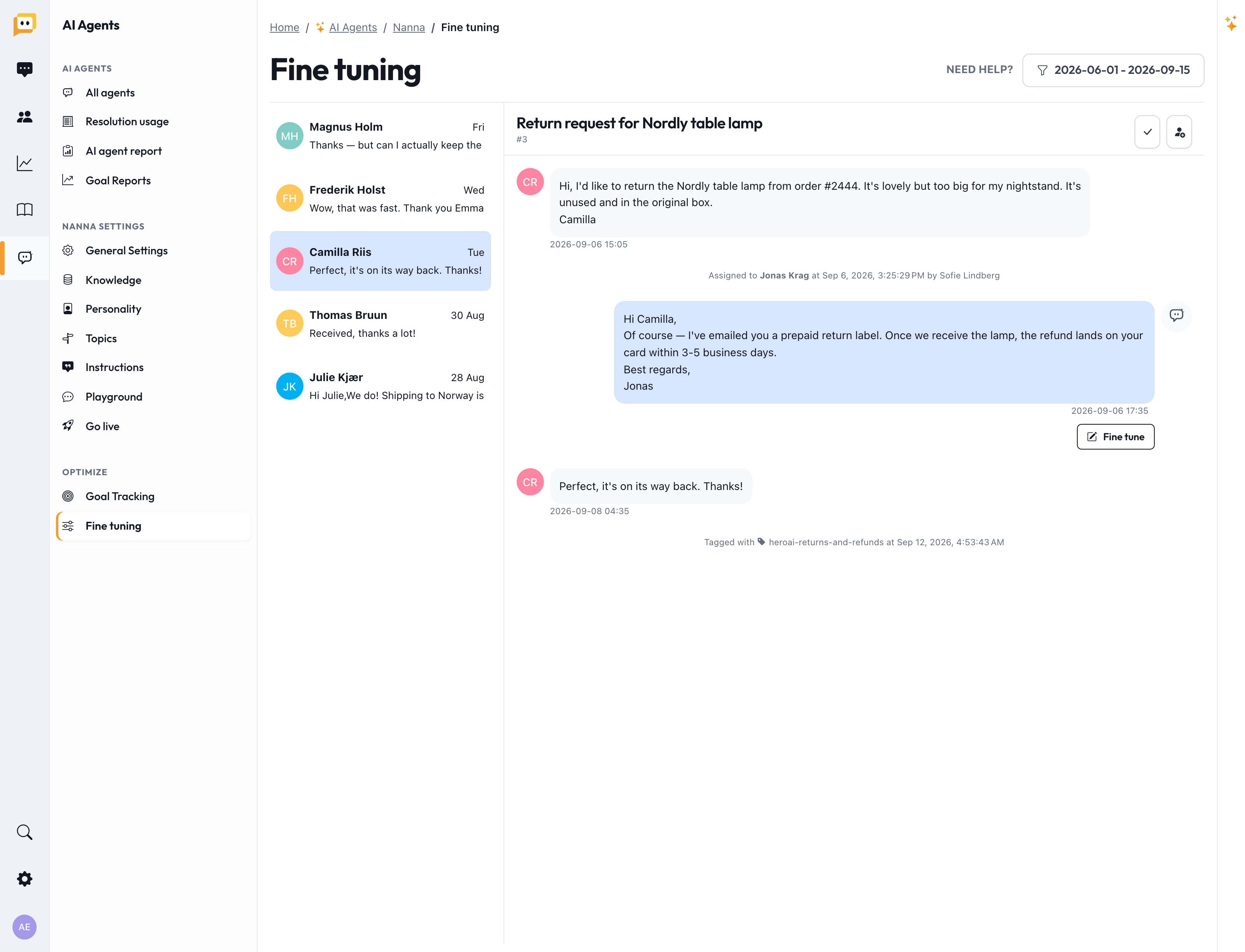
The page is a split view:
- On the left, a list of conversations your agent handled. Filter by date range and inbox, or toggle Show Completed to hide the ones you've already handled.
- On the right, the full conversation, so you can see exactly what the customer asked and what the agent replied.
How to fine tune a reply
- Find a reply worth improving. Browse the conversation list and open one where the agent's answer could have been better.
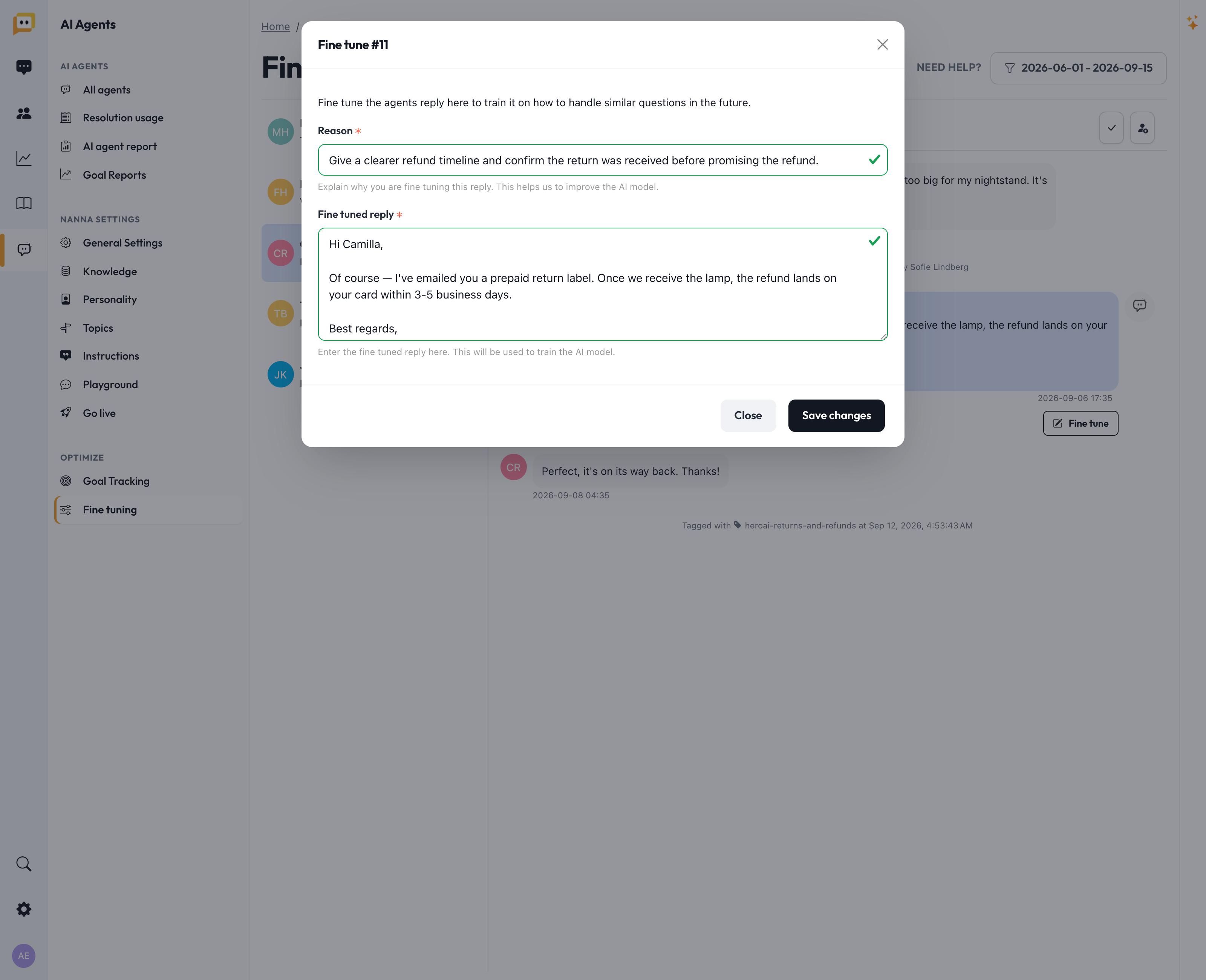
- Click "Fine tune" on the agent's reply. A window opens showing the agent's original reply.
- Explain why. In the Reason field, describe what was wrong — this helps improve the underlying model, and it's a useful note for your team.
- Write the better reply. In the Fine tuned reply field, enter the answer the agent should have given.
- Save. Your correction is stored and indexed so the agent can learn from it.
Not sure why the agent answered the way it did? The window can show you the sources behind the original reply — the knowledge it used. If the answer was wrong because the information was wrong, the real fix may be on the Knowledge page (correct the source), not here.
The easiest way to fine tune: just edit drafts
Here's the best part — if you run your agent in Review mode (where it drafts replies for your team to send), you're already fine tuning without any extra work.
When an agent handles a conversation and you edit its draft before sending, Herodesk notices that your final reply differed from what the agent suggested. Those edited conversations are automatically flagged as fine-tuning candidates and surfaced on the Fine tuning page — ready for you to confirm as lessons.
So the habit is simple: fix drafts as you normally would, then periodically visit the Fine tuning page to turn those edits into lasting improvements.
What to fine tune (and what not to)
Fine tuning is for teaching judgement and phrasing — the things that aren't a simple fact lookup. Use it when:
- ✅ The agent had the right facts but phrased it poorly or off-brand.
- ✅ The agent missed a step you always take (e.g. offering a discount before a refund).
- ✅ The agent handled a nuanced situation in a way you'd do differently.
Reach for a different tool when:
- ❌ The information was wrong or missing → fix it on the Knowledge page. Fine tuning can't fix bad source data.
- ❌ It's a rule that applies to every conversation → add an Instruction.
- ❌ It's a rule for one type of question → add a topic-specific instruction on the Topics page.
- ❌ The agent shouldn't answer that subject at all → move the Topic to Human.
Rule of thumb: Instructions and Topics teach rules. Fine tuning teaches by example. Use examples for the subtle stuff that's hard to write as a rule.
Make it a habit
Fine tuning works best as a small, regular routine rather than a one-off:
- Weekly at first. Set aside a short slot to review recent conversations and edited drafts.
- Start with your worst topics. Use the Topics board — open a red or yellow topic's "Not solved by the agent" list and fine tune from there. You'll lift that topic's resolve rate directly.
- Always fill in the reason. It keeps your team aligned and improves the results.
- Watch the rates respond. As you fine tune, topics move from Needs work toward Good — and become candidates for Autopilot.
In short
Fine tuning turns everyday support work into a compounding advantage: every correction your team makes teaches the agent to need fewer corrections tomorrow. Combined with good knowledge, clear instructions, and well-managed topics, it's how your AI Agent grows from "helpful" into a genuinely trusted member of the team.
Questions about fine tuning or anything else? Reach us at support@herodesk.com. 🙌