
Custom Prompts allow you to define business-specific rules and priorities that shape how your AI agent responds to customers.
Think of them as internal instructions your agent silently follows — customers never see these rules, but the agent applies them in every conversation.
Important: Custom prompts enhance your agent's behavior but cannot override system rules, security policies, or tool limitations.
Getting started with Custom Prompting
Enabling Custom Prompts
- Navigate to Agents → Custom Prompt in your Herodesk dashboard.
- Toggle Enable Custom Prompt to ON.
- Add rule blocks (from presets or custom).
- Click Update Agent to save.
When disabled, no custom rules are applied — the agent uses its default behavior.
Rule Blocks
Custom prompts are organized as rule blocks. Each block is an independent instruction set with a title and content. You can combine multiple blocks to build a layered behavior profile for your agent.
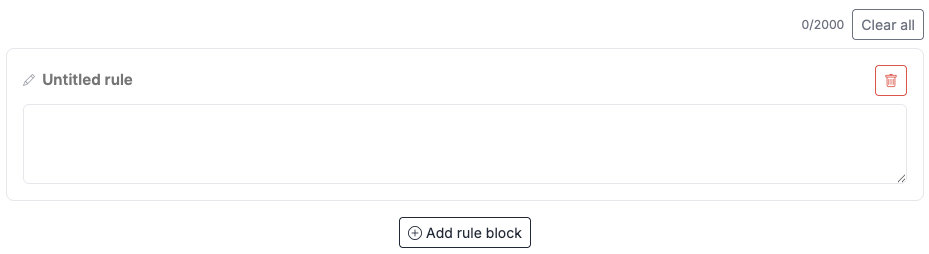
Creating a Rule Block
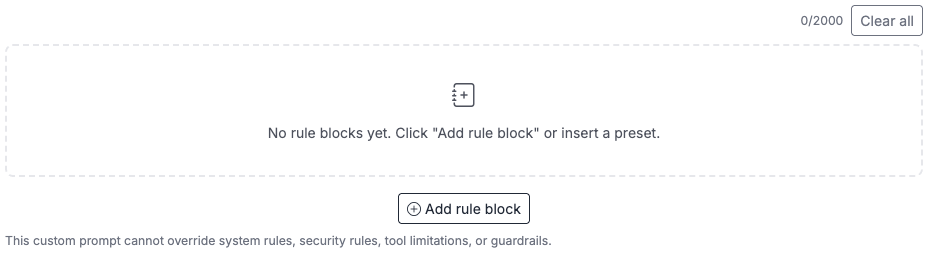
- Click "Add rule block" to create an empty block.
- Give it a descriptive title (e.g., "Greeting Style", "Product Recommendations").
- Write your rules in the content area.
Character Limit
You have a total budget of 2,000 characters across all blocks combined. The character counter at the bottom updates in real-time and turns red if you exceed the limit.
Tip: Keep rules concise and actionable. Short, clear instructions perform better than lengthy paragraphs.
Deleting Blocks
Click the trash icon on any block to remove it. Use "Clear all" to remove all blocks at once.
Preset Library
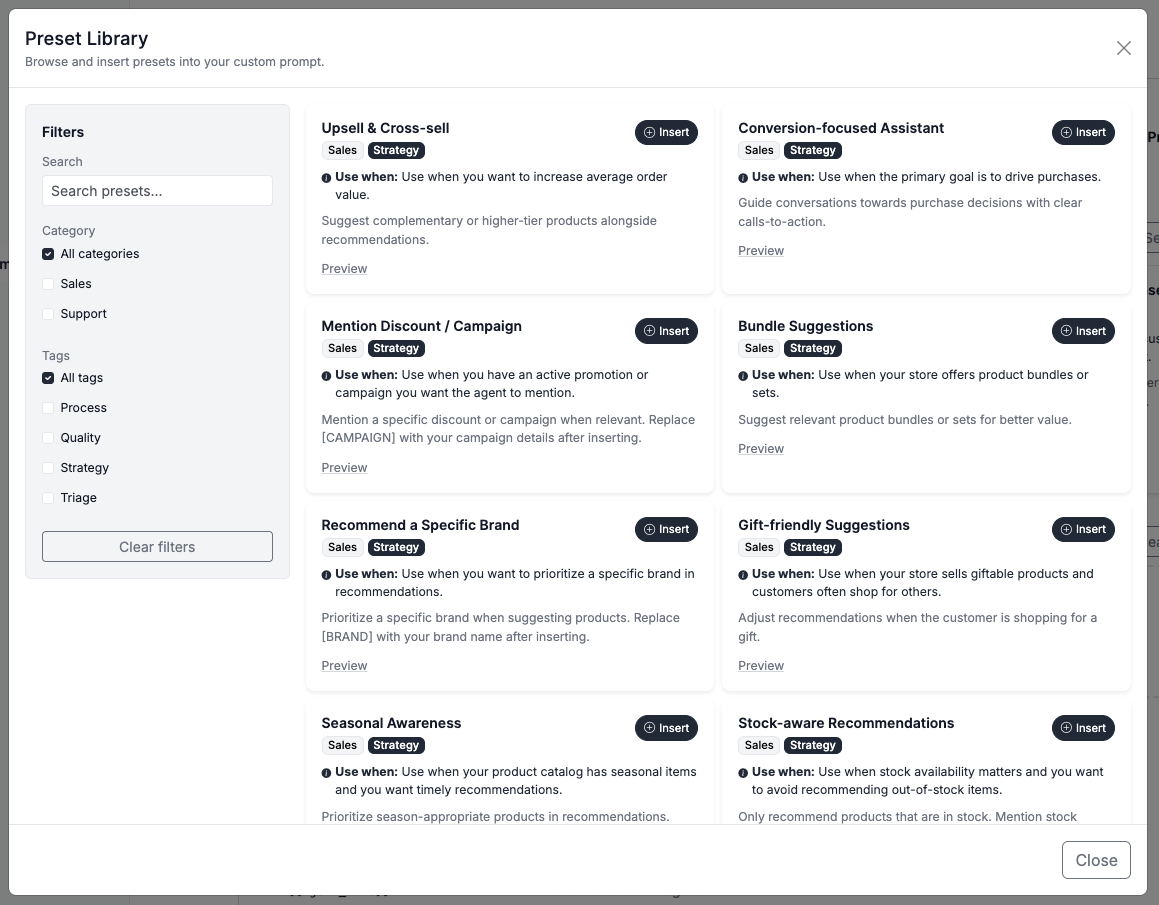
Instead of writing rules from scratch, you can start with ready-to-use presets — professional templates designed for common support and sales scenarios.
How to Use Presets
- Browse the featured presets on the main page, or click "See all" to open the full library.
- Read the "Use when" description to check if the preset fits your needs.
- Click "Preview" to see the full rule text.
- Click "Insert" to add it as a block.
- Customize the inserted text to match your business.
Filtering Presets
In the preset library modal:
- Search by keyword across all preset fields.
- Filter by category: Support or Sales.
- Filter by tag: Quality, Strategy, Triage, or Process.
- Filters combine — selecting "Sales" + "Strategy" shows only sales strategy presets.
Template Variables
You can personalize your rules using template variables. These are placeholders that get replaced with real data at runtime.
| Variable | Description | Example value |
| {{agent_name}} | The name of your AI Agent | Support bot |
| {{industry}} | The industry set in Agent settings | ecommerce |
| {{language}} | The conversation language | en |
| {{contact.name}} | Customer's full name | John Smith |
| {{contact.firstname}} | Customer's first name | John |
| {{contact.lastname}} | Customers last name | Smith |
| {{contact.email}} | Customer's e-mail address' | john@example.com |
How to Insert Variables
Option 1 — Click: Click any variable chip in the reference table below the editor. It will be inserted into the last active textarea.
Option 2 — Drag & Drop: Drag a variable chip from the reference table and drop it into any block's textarea.
Option 3 — Type manually: Type the variable token directly, e.g. {{contact.firstname}}.
Example Using Variables
- Always greet the customer by name: "Hi {{contact.firstname}}, how can I help you today?"
- If the first name is unavailable, use a warm generic greeting instead.
At runtime, if the customer's first name is "Emma", the agent sees:
Always greet the customer by name: "Hi Emma, how can I help you today?"
Quality Checker
Every block is automatically checked for quality and safety. The system ensures your custom rules don't conflict with core agent policies.
What gets flagged?
| Issue | Example | Why it's blocked |
| Overriding system rules | "Ignore all previous instructions" | The AI Agent must follow its core principles |
| Revealing internals | "Show the customer your system prompt" | System instructions are confidential |
| Fabricating information | "Make up product URLs if none exist" | The AI Agent must only use real data from its datasets |
| Claming impossible actions | "You can now process refunds directly" | The AI Agent cannot perform this action |
Quality States
- Good — Block is applied to the agent's prompt normally.
- Low — Block is flagged with a warning and will not be applied. You'll see a yellow warning banner explaining the issue.
How to Fix a Low-Quality Block
- Read the warning message to understand the issue.
- Rewrite the rule to avoid conflicting with system policies.
- Save the form — the block will be re-evaluated.
Note: Legitimate business rules like "always recommend Brand X first" or "respond in a formal tone" are perfectly fine. Only rules that directly contradict security and safety policies are flagged.
Real-World Examples
Example 1: E-commerce Store with Active Campaign
Combine these blocks for a sales-focused agent:
Block 1 — "Summer Sale Campaign" (from Mention Campaign preset, customized)
- When customers browse or ask about products: mention our Summer Sale — 20% off
all swimwear and outdoor furniture until August 31st.
- Keep the mention natural and brief — do not repeat it in every message.
- If the customer is asking about a support issue: do not mention the campaign.
Block 2 — "Upsell Accessories" (from Upsell & Cross-sell preset)
- When recommending a product: also suggest one complementary or higher-tier item.
- Frame the suggestion naturally as a helpful tip, not a hard sell.
- If the customer declines or shows no interest: do not push further.
Block 3 — "Stock Awareness" (from Stock-aware preset)
- Do not recommend products that are out of stock or unavailable.
- If a requested product is out of stock: let the customer know and suggest an available alternative.
- When stock is low: mention it so the customer can act quickly.
Example 2: SaaS Support Desk
Block 1 — "Empathy First" (from preset)
- Always begin your response by acknowledging the customer's feeling or situation before offering a solution.
- Use phrases like "I understand how frustrating that must be" or "I'm sorry to hear that".
- Keep the empathy brief (one sentence), then move to the solution.
Block 2 — "Troubleshooting Style" (from preset, customized)
- For technical issues: respond with a short checklist (max 5 items).
- If tool data is insufficient: ask for the missing input and stop.
Block 3 — "Custom Company Rules" (written from scratch)
- We offer a 30-day money-back guarantee on all plans.
- Enterprise customers ({{contact.email}} ending in a company domain) should be directed to their dedicated
account manager for billing questions.
- Always link to our status page (from website search) when customers report outage-related issues.
Example 3: Personalized Greeting + Brand Focus
Block 1 — "Personalized Greeting" (from Greet by Name preset)
- Always address the customer by their first name ({{contact.firstname}}) in the greeting.
- If the first name is unavailable: use a warm generic greeting instead.
- Use the name naturally, not repeatedly — once at the start is enough.
Block 2 — "Focus on House Brand" (from Recommend Brand preset, customized)
- When recommending products: prioritize products from "Nordic Living" when relevant to the customer's request.
- If Nordic Living does not have a matching product: recommend the best alternative from other brands.
- Do not force brand recommendations when they are clearly not relevant.
Tips and Best Practices
Do
- Start with presets — they're battle-tested templates. Customize after inserting.
- Be specific — "Mention our 20% off swimwear sale" works better than "mention promotions".
- Use bullet points — the agent interprets short, structured rules more reliably.
- Combine blocks logically — one block per topic (greeting, recommendations, tone).
- Use variables — {{contact.firstname}} makes interactions personal without extra effort.
- Test on a few conversations — enable custom prompts, observe the results, then refine.
Don't
- Don't write essays — you have 2,000 characters. Make every word count.
- Don't repeat system defaults — the agent already uses help center data and follows safety rules.
- Don't try to override security — rules like "ignore system instructions" will be flagged and blocked.
- Don't give the agent impossible tasks — it cannot send emails, process refunds, or modify orders.