
An AI Agent is only as good as the data it's trained on.
In order for your AI Agent to give good answers to your customers, you must provide it with a lot of high-quality data that it can search through when looking for answers to your customers' questions.
In Herodesk, we call this "Datasets".
This article will help show how to configure the first datasets for your AI Agents.
Add the first dataset
To add the first dataset to your AI Agent, click on "Knowledge" on the left hand menu and then the "Add Dataset" button in the top right corner.
That will open a pop-up where you should choose which type of dataset you want to add.
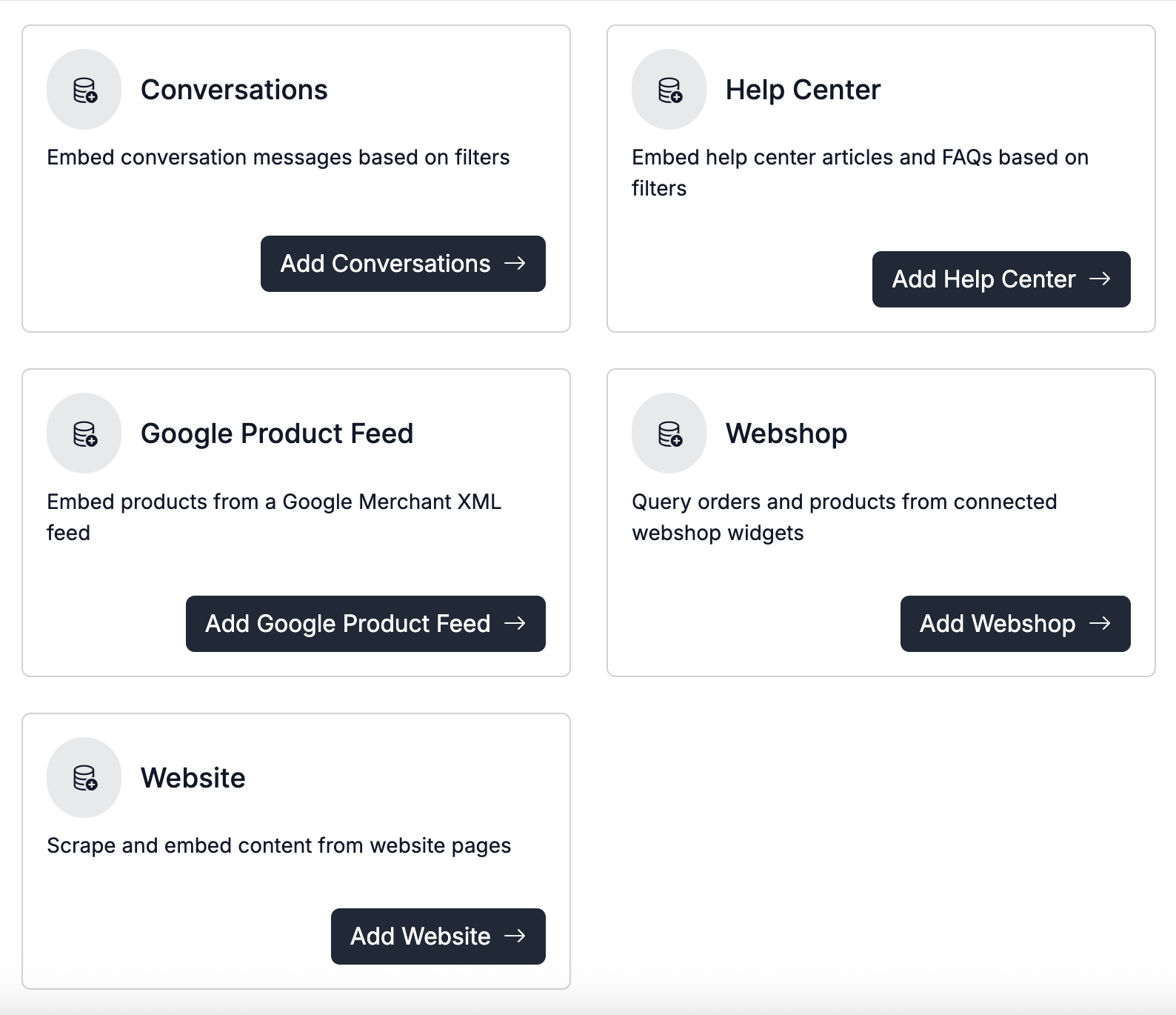
Types of data sets
Herodesk AI Agents currently support five types of datasets. More are in development (more about that later).
The five types are:
- Conversations dataset
- Help center dataset
- Google product feed
- Webshop
- Website
Conversations dataset
Train your AI Agent on conversations in your Herodesk. This will let the AI Agent see how you and your team have handled other customer questions in the past and be trained on that.
All data is anonymised before the AI Agents are trained on it.
Help center dataset
Articles and FAQs in your Herodesk help centers are one of the best ways to train your AI Agents. Give it access to those data and let it memorize the content, so it can be used when answering your customers.
Google Product Feed dataset
Your AI Agent can be trained on all details about all your products. This way, it can answer product questions based on the details in your Google Product Feed.
Webshop dataset
With the webshop dataset, the AI agent can retrieve all order details available in your shop widget. This means the chatbot can also answer where a customer’s package is, as it can provide a track-and-trace link.
Website
By adding your website, AI agents can scrape your entire site for information. This allows the agent to answer anything found there — from contact details to product information.
Next steps...
Now that you have created and deployed your new AI Agent, set its personality and trained it on your data, it is ready to work.
Open a conversation in an inbox you've deployed the AI Agent to, to see the first suggested replies.
Or try to start a new live chat conversation in a chat where you've deployed the AI Agent to test it out.
The next step is fine-tuning your AI Agent's replies. You can learn about how to do that here: https://herodesk.app.herodesk.io/helpcenters/1/folders/15/articles/44?language=en-US