
Maintaining a clean inbox is essential for staying productive. Herodesk includes built-in spam protection, AI-driven automation, and manual tools to ensure your workspace remains focused on genuine customer inquiries.
In this article, you will learn how Herodesk automatically filters spam, how to set up an AI-powered spam rule, and how to block specific contacts.
Automatic spam filtering
Herodesk features a built-in anti-spam system that automatically scans all incoming emails. It evaluates technical markers like SPF, DKIM, and DMARC records to verify the sender's identity.
When an email arrives, our system performs a series of technical checks to determine its legitimacy. These checks include:
- Authentication verification: Ensuring the email truly comes from the claimed sender (using SPF and DKIM).
- Content analysis: Scanning for common spam indicators, such as "image-only" messages or suspicious HTML tags.
- Reputation checks: Verifying the sender's server against global blocklists and DNS records.
- Scoring: Every email receives a total spam score based on these tests. If the score exceeds a rating of 4.0, the email is flagged.
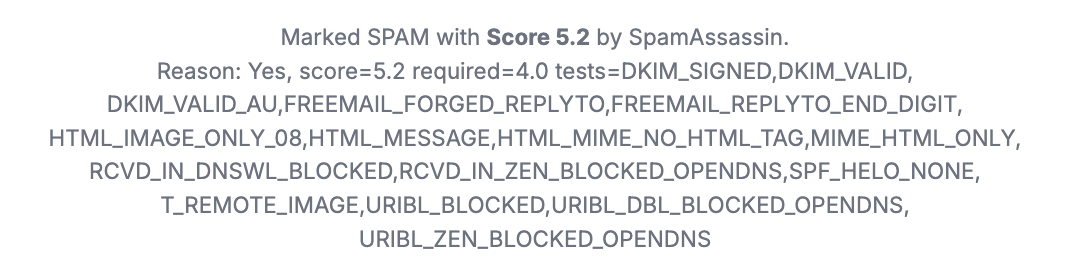
How to view the conversation log
If you want to see exactly why a specific email was marked as spam (like the image above), you can inspect the conversation log.
- Open the conversation you want to investigate.
- Click the three dots in the top right corner of the conversation view.
- Select View conversation log.
Here, you will find a detailed breakdown of the spam tests performed and the final score assigned to the message.
How to set up an AI spam filter rule
You can use Herodesk’s AI capabilities to analyze the content of incoming messages and automatically categorize them as spam if they appear suspicious.
To set up an AI spam rule, follow these steps:
- Navigate to Settings > Automation > Rules.
- Click Create new rule.
- In the Rule name field, enter a name (e.g., "AI Spam Filter").
- Ensure the Enabled toggle is switched on.
- Under the When section, select A conversation and Is created.
- Under the If section, click Add condition and select Latest message > Content > Matches an AI analysis > The message is SPAM.
- Under the Perform section, select Set conversation status and choose Spam.
- Click Save changes.

With this rule active, the AI will analyze the intent and context of new messages and move them to your spam folder if they match common spam patterns.
Where to find spam messages
When a message is flagged as spam, it is automatically moved out of your main inbox to keep your workspace clean.
To find these messages:
- Look at the sidebar on the left side of your screen.
- Locate the folder named Junk at the bottom of the list.
Tip: We recommend that you check the Junk folder periodically to ensure that no legitimate customer inquiries have been incorrectly flagged.
Blocking a contact
If you receive persistent unwanted messages from a specific sender that the filters don't catch, you can block them manually. Once a contact is blocked, their future messages will no longer appear in your active inbox.
To block a contact:
- Open the conversation from the sender you wish to block.
- In the right-hand sidebar, click on the contact's name or the profile circle.
- On the contact profile page, locate and click the red Block button.
- Confirm your choice in the pop-up window.
Note: Blocking a contact is a permanent action until you manually unblock them from the Contacts menu.
If you have questions about managing spam, you’re always welcome to contact our support.