
The algorithms that power automatic translation are quite sophisticated, designed to make it very easy to use.
To support different wishes and ways of working, automatic translation can be configured in different ways. This article describes how it works.
Configuring automatic translations of incoming and outgoing messages can be done on two levels.
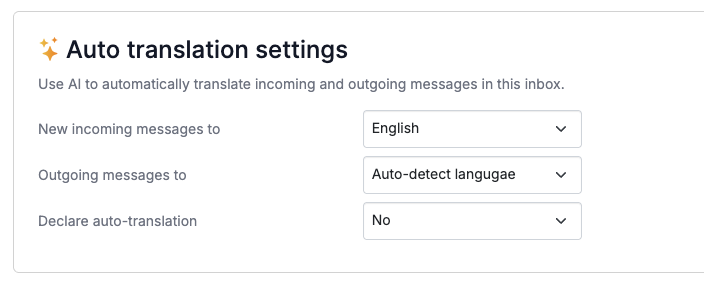
1) Inbox translation settings
Set default settings to translate incoming and outgoing messages to and from a specific language.
When set, new messages received in this inbox will by default be translated to the selected inbound language, and messages sent in conversations in this inbox will be translated to the selected outbound language.
2) Conversation translation settings
All inbox translation settings are stored per conversation. However, you can override these and configure specific translation behaviour on each conversation.
This takes presedence to the general Inbox translation settings.
To see and configure AI translations on a specific conversation, click AI in the top right corner, then Automatic Translation.
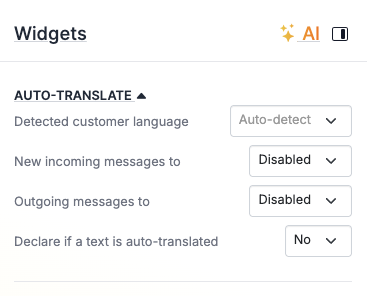
When you open a conversation with incoming and/or outgoing message translation configured, Herodesk will automatically turn on translation.
Enabling automatic translation
You can manually enable automatic translation by clicking the Translate icon in the conversation header:
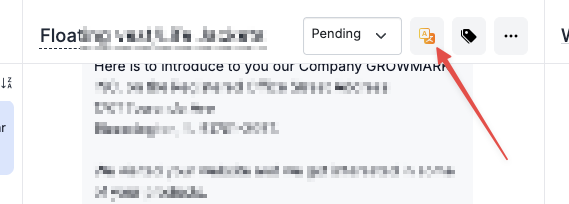
This will show incoming messages in the same language that you've configured on your Herodesk profile page. Let's take English as an example.
If an English translation of the message isn't available, we will translate it now. This can take up to a minute, depending on the message length.
This is why we recommend setting Inbox translation rules. If done, messages are translated when they arrive, before you open them, so translation of incoming messages is ready, and you don't have to wait.
If you want to disable translations, click the button again. Now you'll see all messages in their original language, and outgoing translations are disabled, too.
Managing outgoing translations
Automatic translations of outgoing messages can have one of three settings:
- Disabled - nothing happens.
- Auto-detect - we detect the language of the customer's message and ensure to translate your message to their language.
- A specific language - we translate outgoing messages to the language you've chosen.
The best way to be 100% sure that an outgoing message will be translated is to look next to the "Send" button in the message editor:
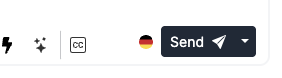
If a flag is present, the message you're typing will be translated to that language (in this case, German) before it is sent to the customer.
Changing the outbound translation settings
If translations are currently disabled, and you manually change the setting for outgoing message translation (changing it from "Disabled" to either "Auto-detect" or a specific language), this will enable outgoing translation.
This means that the message you write in the editor will be translated into that language. You can confirm this by seeing that a flag has been added next to the "Send" button.
Declare if a text is auto-translated
There's a setting to "declare if a text is auto-translated". If enabled, we'll add a note at the bottom of the translated outgoing text indicating that it has been translated into the customer's language using artificial intelligence.
By default, we recommend enabling this setting. There are two reasons.
First, the customers appreciate it that you are doing something extra to communicate with them in their own language.
Second, if the AI generates a translation that is a bit off or uses the wrong word, people tend to see through it and still appreciate the effort of communicating with them in their own language.
A note on how we translate
While incoming messages from the customers are translated 1:1, outgoing messages are not.
We have configured our AI to translate your message into the desired language, then slightly rewrite it to be customer-support-centric and align with the recipient's cultural expectations.
Take Germany, for example. A direct translation from English to German will seem impolite to many Germans, because they expect more formal writing. This is done automatically.
Wrong language detected
Large Language Models (LLMs), the technology behind what we, on a daily basis, simply call "AI", are by definition non-deterministic. That means you can ask the same question 10 times and get 10 different answers.
Therefore, it will occasionally make mistakes.
If it guesses the language of a conversation wrong, you can change it manually in the conversation translation settings in the upper right corner:
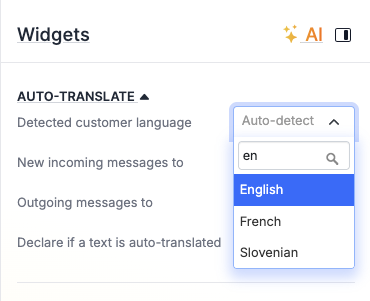
This is especially important if you have set outgoing translations to "Auto-detect".
Keep an eye on the flag next to the "Send" button. If incorrect, you can change the detected language of the conversation (which should always be the language the customer is writing in) here.
Seeing messages in another language
There are many different languages in the mix here. A quick recap:
- Inbox translate settings are applied to all conversations when they arrive in the inbox.
- If incoming translation is set, this is prepared and ready when you open the conversation.
- The translate settings of each conversation override any inbox translation settings.
- When translation of a conversation is enabled, you'll see the customer's message in your language (the language of your Herodesk app), and they will receive your reply in the language configured for outbound translation.
- Keep an eye out for the flag next to the "Send" button in the message editor to see which language the customer will receive your message in.
If you want to see the customers message in another language, you have two options:
1) See exsting translations
At the bottom of each conversation, you'll see all the translations that are ready:
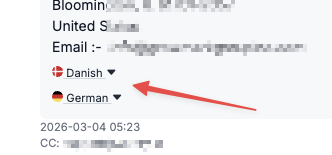
Simply click it to see that translation.
2) Get a new translation in another language
If you want the message translated to another language, hover the mouse over the conversation, click the three dots at the right of the conversation and choose "Translate Message":
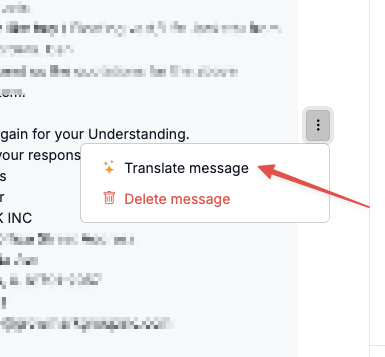
This will open a new window where you can choose which language to translate the message to. Click "Save" to store it for later.