
Icebreakers are pre-configured messages that automatiaclly pop-up from the live chat on your website, to greet or interact with your visitors or customers.
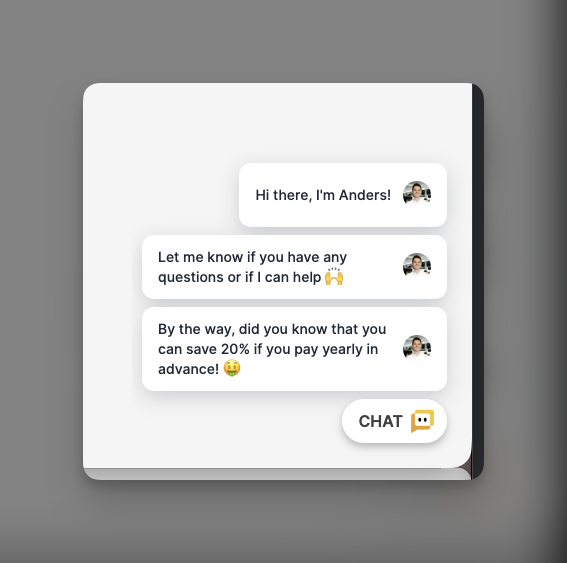
To set up Icebreakers on your website, go to Settings -> Channels and select your Live chat channel.
Open Icebreakers and enable them.
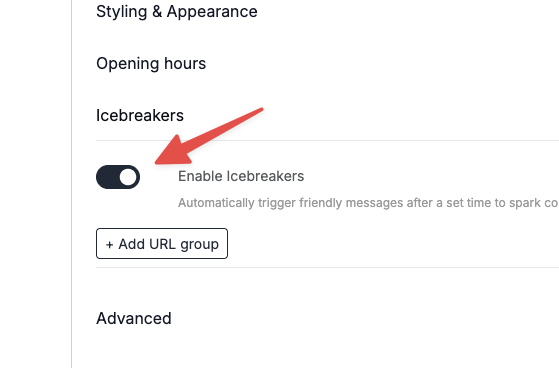
Add a URL group
First, you should decide which pages on your website you want to use the Icebreakers.
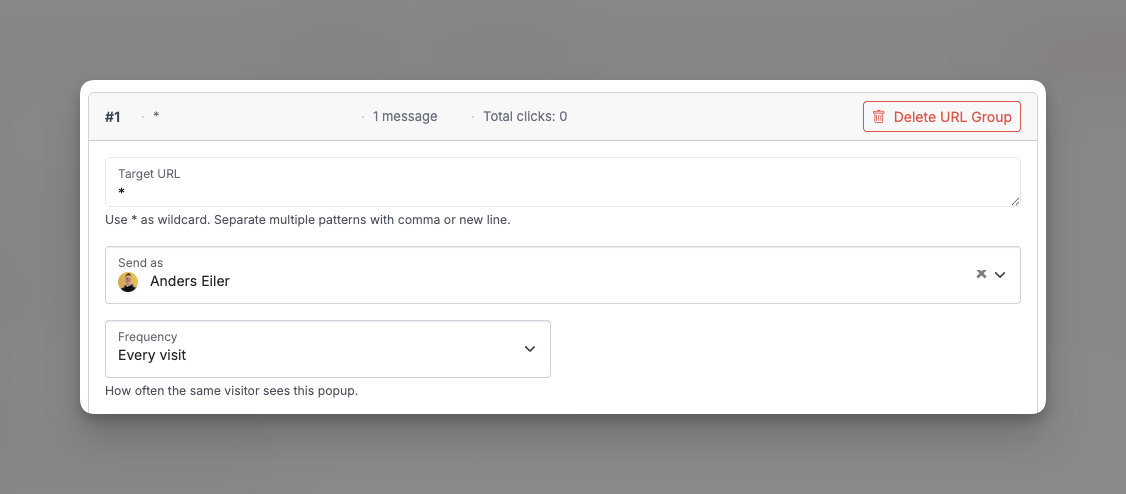
The Target URL defines this. You can add one or more URLs and use * as a wildcard.
For example
| Target URL | Pages |
| * | All pages on your website |
| /prices | Your pricing page |
| /blog/* | Your blog and all subpages on your blog |
You can only have one Icebreaker per page.
If you configure multiple Target URL groups, the most specific one takes precedence.
For example, if you have a wildcard * for all pages, and a specific one for /prices, the one configured for /prices will be shown when the visitor visits that site.
Next, choose which of your users or AI agents you want to be the sender of the Icebreakers.
Finally, choose how often you want the Icebreakers to pop up for the visitors.
Add Messages
Click the "Add Message"-button to add a new message to be shown in this Target URL Group.
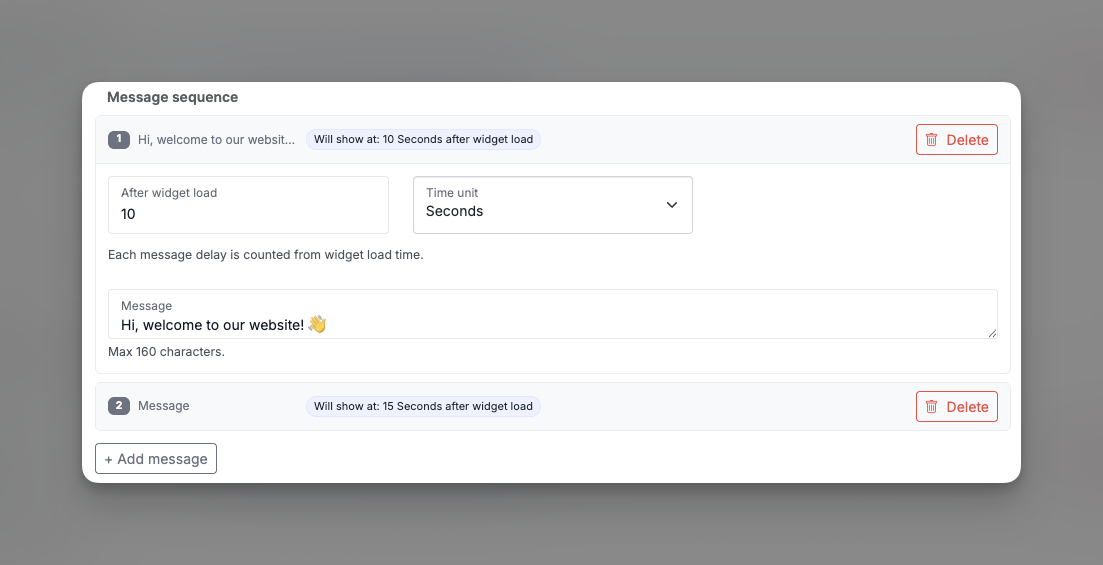
For each message, you must set a delay (how long before it pops up) and the message to send.
You can add multiple messages.
A maximum of three will be shown at the same time.
If you add four, the first one will disappear when the last one is shown.
Statistics
Each Target URL Group has its own set of simple statistics, found at the bottom of its settings:
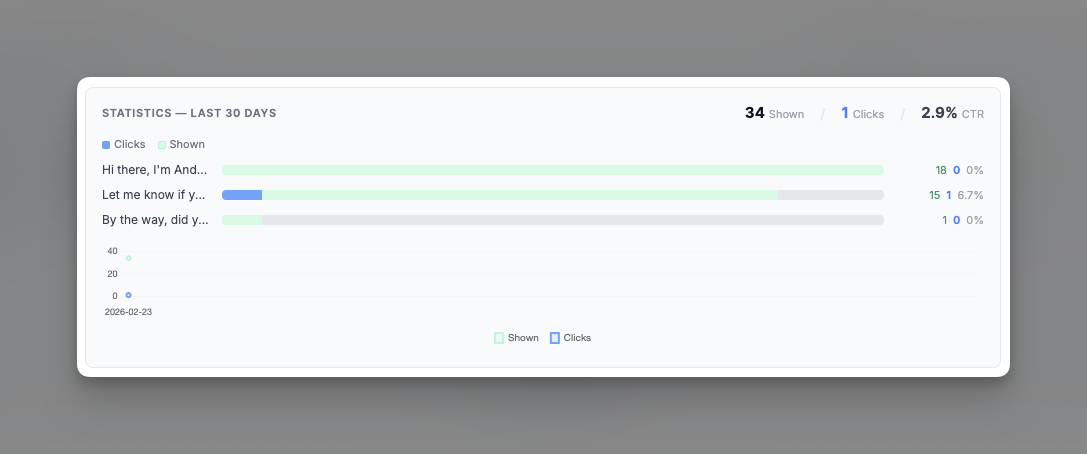
These show how many times the messages have been shown, how many times each has been clicked, and the click-through rate.
Settings show 30 day running history.