
In Herodesk, inboxes are set up based on language, brand, department, or other factors, as they operate independently. Email signatures and auto-replies are configured per inbox.
If you’re only using one inbox—perhaps because you use the same email address across languages and have therefore set up one general signature and auto-reply (e.g. in English to cover all cases)—but you'd like to reply in the incoming language, send auto-replies in the correct language, and use a signature tailored to the specific language or brand, this can easily be done in Herodesk.
This is achieved through two steps:
- Set up the number of inboxes you need
- Create rules to move messages between them
Once the inboxes are in place, you'll need to set up rules to move Swedish messages to the Swedish inbox, French messages to the French inbox, and so on.
Go to Settings → Rules → Create new rule, and follow the setup shown below.
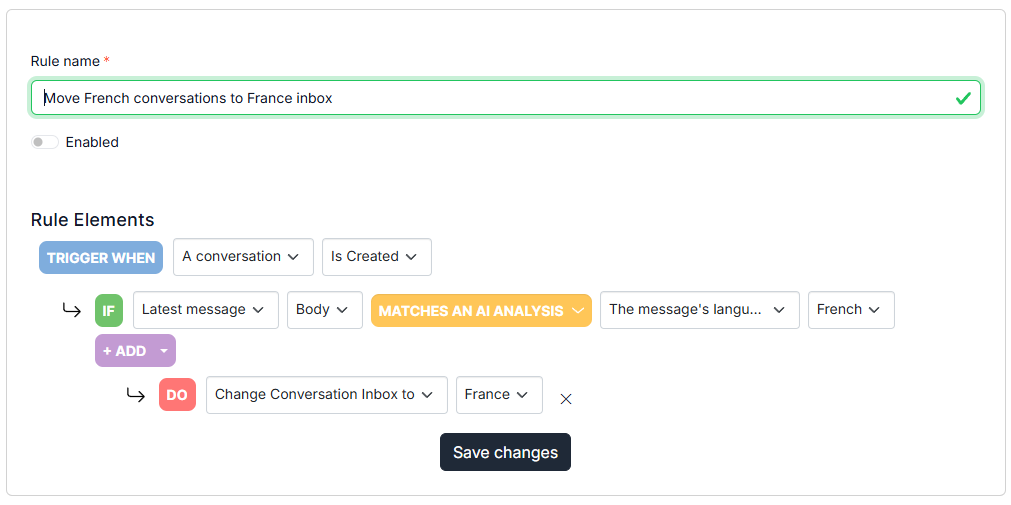
Once the rule is activated, all messages that come into your “main” inbox going forward will be moved to the French inbox. In this inbox, you also have the option to enable auto-translation, allowing you to automatically reply to customers in French. You can set this up using this guide.
Afterwards, make sure to set up an email signature and optionally an auto-reply for the inbox. You’ll find guides here:
If you want to cover the majority of your customers with one inbox and general settings but still wish to respond in their native language, Herodesk solves this by allowing you to create multiple inboxes—even if you don’t have a unique email address for each one. This can be managed using rules.