
Automatic replies allow you to inform your customers about response times, case closures, vacations, etc.
In Herodesk, you can set up an automatic reply when a conversation is either received or closed. If you want to set up an automatic reply when you receive a message but want to avoid replying to order confirmations or similar, the auto-reply should be set up using rules.
You do this by:
- Go to Settings
- Selecting Rules
- Clicking Create rule
- Choosing the setup below, where you insert your auto-reply
- Selecting the word(s) in the subject line that should not trigger an auto-reply
- When completed, simply click Activate and save the rule
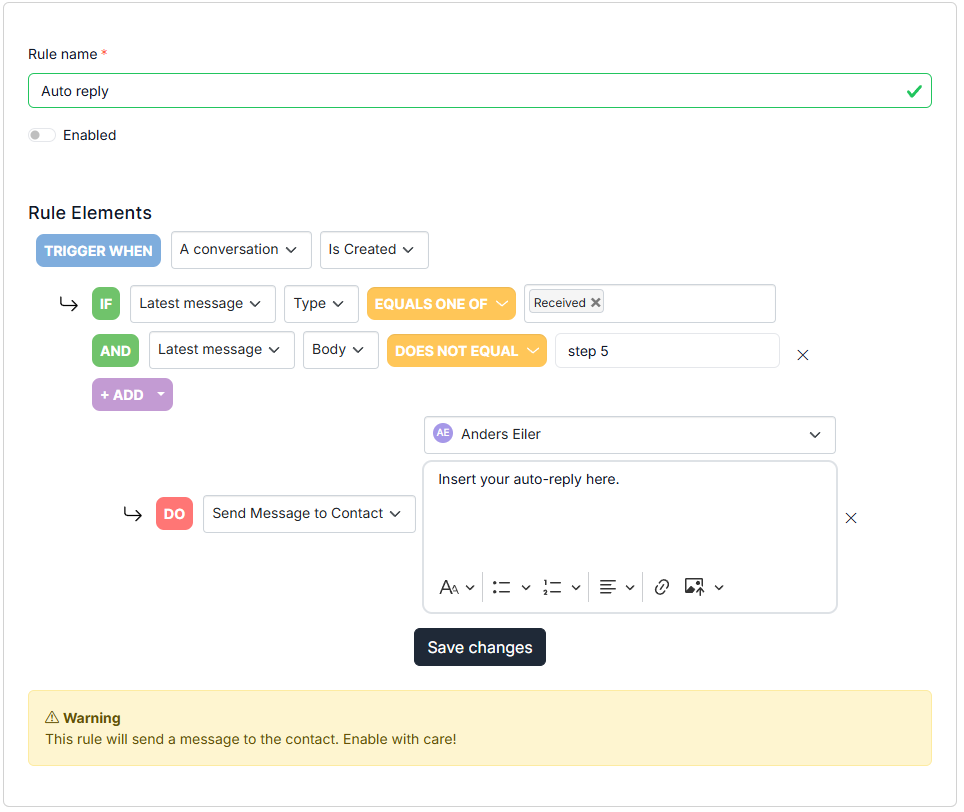
You can test the rule by sending a message with and without the selected word(s) in the "does not contain" field.