
Email signatures are tied to your user account, so each user must set up their own individually from their profile settings.
To create a signature, click your initials in the bottom-left corner → Profile → Signature.
Then the following screen will appear:
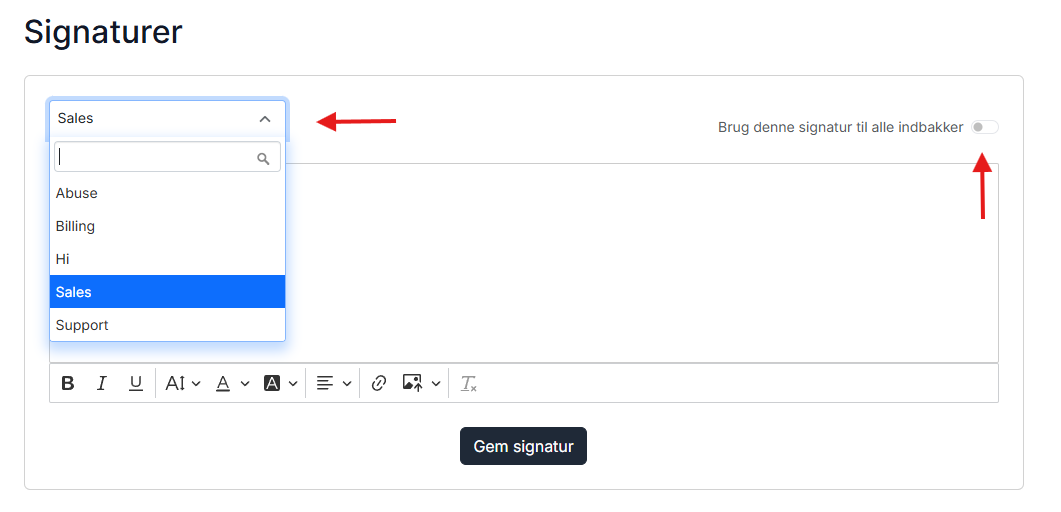
Here, you can create a signature for each inbox or use the same one across all inboxes.
If you have multiple inboxes with different brands, languages or other needs that require separate signatures, click the dropdown above the inbox list and create a unique signature for each inbox.
If you only have one inbox – or several, but no need for different signatures – simply enable "Use this signature for all inboxes" in the top-right corner, and the same signature will be applied across all inboxes.
When sending messages from Herodesk, your signature won’t be visible in the editor, or in the conversation after your message is sent, as space is prioritised for the conversation itself.
But the signature is added to the message before it is sent to your customers.
To preview your signature, send a test email to your personal address.
Signatures are only added to messages sent via e-mail, not the other channel types.